
Integrate with extensions
Install a prebuilt connector for an EHR, messaging provider or e-signature service, and get custom actions and webhooks without configuring API calls.
Extensions connect Awell to electronic health record (EHR) systems, communication providers, form providers, e-signature services and more, with far less work than configuring the API calls by hand.
Browse what exists in the Marketplace, or build a new one to connect a homegrown app.
Install an extension
- Go to the Integrations page in the Awell platform.
- Open the Extensions tab.
- Click Install on an extension.
- Enter the required settings and click Install again.
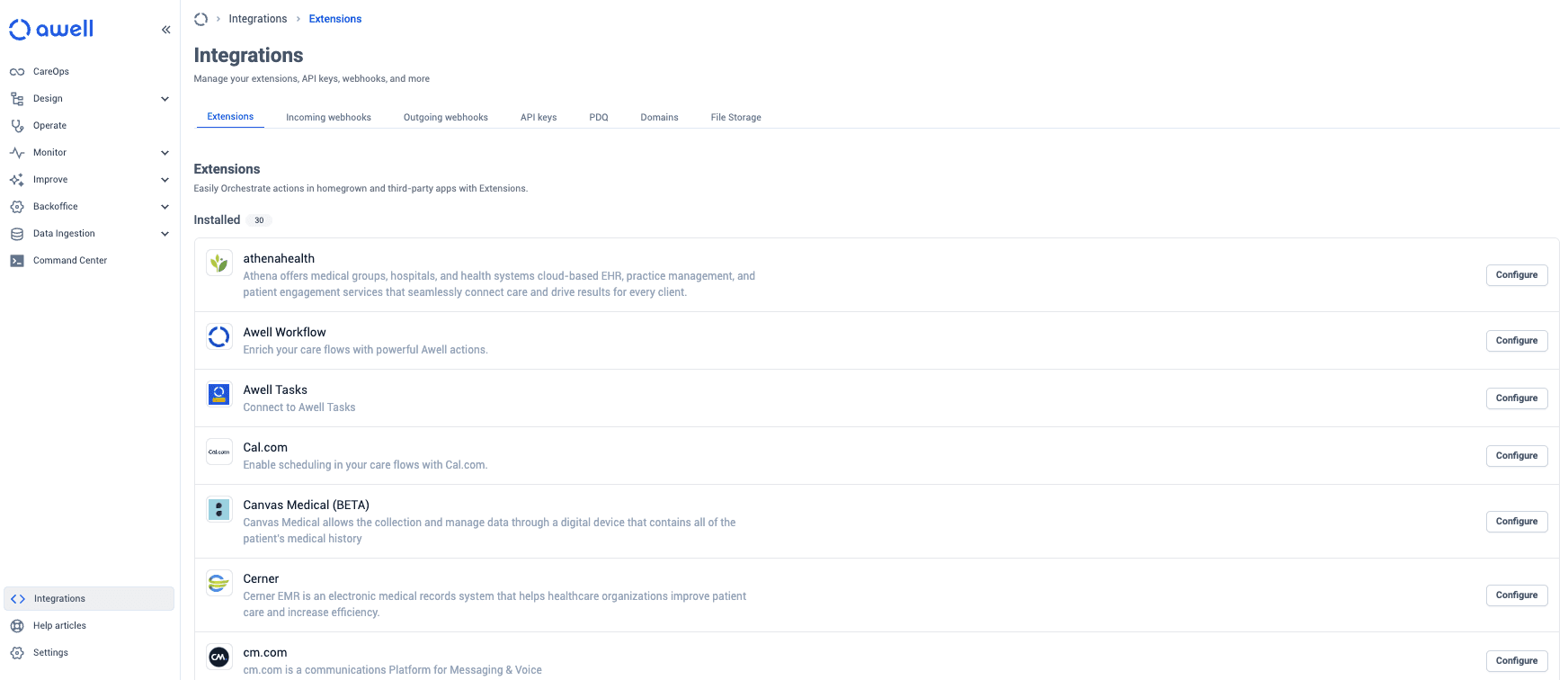
Once installed, an extension is available across every care flow in the organization.
Third-party accounts stay with the organization
For integrations with third-party services, the organization creates and manages its own account with that provider, so it keeps full control and visibility over outgoing traffic, including cost and content.
Installing adds custom actions and webhooks
Custom actions are new action types that talk directly to the third-party service. A care flow uses them like any other action, with no API call to configure.
Many extensions can also receive events from the third-party service through webhooks, so something happening there advances the care flow. See Automate with events.
Prefer an extension, fall back to an API call action
- Extension when one exists for the target system, since there's less to configure and maintain.
- An API call action when nothing prebuilt fits, or when a care flow needs a specific call the extension doesn't expose.
Next steps
Next: Awell and Healthie, a worked example of connecting a real EMR (electronic medical record) system.