
Branding and theming
Control how Navi looks, either organization-wide in the CareOps portal or with per-app overrides through the SDK.
Navi's appearance comes from a branding configuration, set in either of these places:
- Organization-wide in the CareOps portal. Recommended, because everything stays consistent.
- Per app or per embed, set through the SDK.
Start with the organization-wide setting and override only where a specific surface genuinely needs to differ, because scattered overrides make it hard to tell which one applies.
Step 1: Configure branding in the CareOps portal
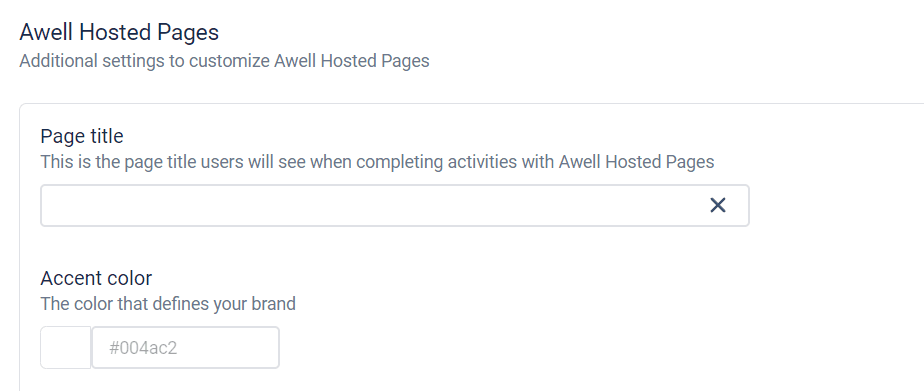
Set the organization's branding once, and every Navi embed picks it up. Hosted Pages has its own settings alongside it, including the page title stakeholders see and the accent color applied to it.
Step 2: Optional overrides in the embedding app
Pass a branding configuration through the SDK to override specific values for one app or one embed.
Fonts have to be loaded by the embedding page
A font Navi can't reach falls back to a default.
Checklist
- Branding configured at organization level
- Any per-app overrides deliberate and documented
- Custom fonts loaded by the embedding app
- Checked on a phone as well as a desktop
Troubleshooting: configuration, then overrides, then environment
If branding doesn't appear, check the organization configuration, then whether an override is winning, then whether the environment on screen is the one that was configured. Branding is set per environment. See the go-live checklist.
Next steps
Back to Embed & host for the other options.