
Elation
Elation is a clinical-first EHR and patient engagement tool. It's designed for the craft of primary care medicine.

Elation is a clinical-first EHR and patient engagement tool. It's designed for the craft of primary care medicine.
Category: EHR Integrations. Adds 34 actions and 2 webhooks to a care flow.
What to configure
Set these once, on the extension in Awell Studio. An action fails at run time if a required setting is missing.
| Setting | Required | Notes |
|---|---|---|
| Authorization URL | Yes | The complete URL of Elation authentication endpoint. |
| Base URL | Yes | The base URL of Elation API. |
| Client ID | Yes | The client ID for OAuth2 Password authentication. |
| Client Secret | Yes | The client secret for OAuth2 Password authentication. Stored as a secret. |
| Password | No | ⚠️ Deprecated: Elation now uses client credentials authentication. This setting is no longer required and should be removed from your settings. Stored as a secret. |
| Rate Limit Duration | No | Rate limit Elation webhooks at a certain duration (e.g. only 1 event for a given appointment_id every '30 s', '1 m', '12 h', '30 d'). Value should be {number} {unit}. |
| Username | No | ⚠️ Deprecated: Elation now uses client credentials authentication. This setting is no longer required and should be removed from your settings. |
Actions
Elation adds these 34 actions to a care flow. Add one to a step, then fill in its inputs.
Add Allergy
Adds allergy to the patient profile. If allergy.name is NKDA, we will document a structured NKDA in the patient chart instead of creating a patient allergy called "NKDA"
This action can be previewed in Studio before you publish.
| Input | Type | Required | Description |
|---|---|---|---|
| Patient ID | numeric | Yes | The ID of the patient for whom the lab order is being created. |
| Name | string | Yes | The name of the allergy drug |
| Start Date | date | No | The date the allergy started (defaults to today) |
| Reaction | string | No | The reaction to the drug |
| Severity | string | No | How severe the reaction is |
Returns:
| Data point | Type |
|---|---|
allergyId | number |
Add History
Add history item on Elation's patient page
This action can be previewed in Studio before you publish.
| Input | Type | Required | Description |
|---|---|---|---|
| Patient ID | numeric | Yes | The patient for whom the the history is being created |
| Type | string | Yes | The type of history being created. Supported values: Past, Family, Social, Habits, Diet, Exercise, Immunization, Legal, Consultation, Health Maintenance, Past Surgical, Cognitive Status, Functional Status One of: Past, Family, Social, Habits, Diet, Exercise, Immunization, Legal, Consultation, Health Maintenance, Past Surgical, Cognitive Status, Functional Status. |
| Text | string | Yes | The text of the history being created |
Add Message to an existing thread
Adds a message to an existing thread in Elation
This action can be previewed in Studio before you publish.
| Input | Type | Required | Description |
|---|---|---|---|
| Thread ID | numeric | Yes | The ID of the message thread to which the message will be added |
| Sender ID | numeric | Yes | The ID of the user that adds the message to the thread |
| Message Body | text | Yes | The content of the message to be added to the thread |
Returns:
| Data point | Type |
|---|---|
messageId | number |
Add Vitals
Add vitals for the patient
This action can be previewed in Studio before you publish.
| Input | Type | Required | Description |
|---|---|---|---|
| Patient ID | numeric | Yes | The patient for whom the the history is being created |
| Practice ID | numeric | Yes | Practice ID where the vitas are beind measured for the patient |
| Visit Note ID | numeric | No | When provided, the vitals will be attached to the visit note. Note that vitals can only be attached to unsigned visit notes. |
| Non-Visit Note ID | numeric | No | When provided, the vitals will be attached to the non-visit note. Note that vitals can only be attached to unsigned non-visit notes. |
| BMI | numeric | No | Body Mass Index; optional and calculated if height and weight are available |
| Height | numeric | No | Patient height in inches |
| Height Note | string | No | — |
| Weight | numeric | No | Patient weight in lbs |
| Weight Note | string | No | — |
| Oxygen | numeric | No | Oxygen |
| Oxygen Note | string | No | — |
| Respiratory Rate (rr) | numeric | No | Respiratory rate |
| Respiratory Rate Note | string | No | — |
| Heart Rate (hr) | numeric | No | Heart rate |
| Heart Rate Note | string | No | — |
| Head Circumference (hc) | numeric | No | Head circumference |
| Head Circumference Note | string | No | — |
| Temperature | numeric | No | Temperature |
| Temperature Note | string | No | — |
| Blood Pressure (bp) | numeric | No | Blood pressure |
| Blood Pressure Note | string | No | — |
| Body Fat | numeric | No | Body fat percentage |
| Body Fat Note | string | No | — |
| Dry Lean Mass (dlm) | numeric | No | Dry lean mass |
| Dry Lean Mass Note | string | No | — |
| Body Fat Mass (bfm) | numeric | No | Body fat mass |
| Body Fat Mass Note | string | No | — |
| Waist Circumference (wc) | numeric | No | Waist circumference |
| Waist Circumference Note | string | No | — |
Returns:
| Data point | Type |
|---|---|
vitalsId | number |
✨ Cancel Appointments
Cancel appointments for a patient using natural language.
This action can be previewed in Studio before you publish.
| Input | Type | Required | Description |
|---|---|---|---|
| Elation patient ID | numeric | Yes | The Elation patient ID of the patient you want to cancel appointments for. |
| Describe the appointments you would like to cancel | text | Yes | Provide clear instructions about what appointments you want to cancel. You can search by appointment type (e.g., "Find all PCP visits"), status (e.g., "Find scheduled appointments"), or other criteria. Be as specific as possible for best results. |
Returns:
| Data point | Type |
|---|---|
cancelledAppointments | json |
explanation | string |
This AI-powered action uses AI to identify and cancel patient appointments based on natural language instructions. You can say, "All follow-up appointments for next week" and AI will identify and cancel the right ones for you.
**How it works:
- Retrieves all upcoming appointments for the patient from Elation
- Uses an LLM to interpret the prompt and identify which appointments should be canceled
- Processes the cancellation for matched appointments and handles partial success scenarios
What it needs (Inputs):
Elation patient ID(Required): The numeric ID of the patient in Elation whose appointments you want to cancel.Describe the appointments you would like to cancel(Required): Natural language instructions describing which appointments should be canceled. Be specific about criteria such as time period, appointment type, or provider.
What it gives back (Outputs):
Cancelled Appointments: An array of appointment IDs that were successfully canceled.Explanation: A detailed explanation of which appointments were canceled and why they matched your criteria.
Tips for best results:
- Use single or double quotes for exact matches. For example, '"Follow-Up"' will only match appointments with exactly that type.
- When you know exactly what to match (appointment type, status), put it in quotes (e.g., '"Scheduled"', '"Physical Exam"') for exact matching.
- For other criteria where you're less certain, provide descriptive instructions without quotes.
- Be specific about the time frame: "all appointments this week," "appointments in July," etc.
- You can target specific appointment types: "all physical therapy appointments," "follow-up visits", etc.
- Only future appointments with status "Scheduled" or "Confirmed" can be canceled.
- If no appointments match your criteria, the action will explain why nothing was canceled.
- For safety, highly specific criteria are recommended to avoid unintended cancellations.
- Be clear and specific in your instructions to avoid ambiguity - this is critical for preventing accidental cancellations.
Example**:
Input:
  Elation patient ID: 12345
  Describe the appointments you would like to cancel: "All appointments with status 'Scheduled' for office visits in the next two weeks."

Output:
  Cancelled Appointments: [67890, 67891]
  Explanation: "I canceled 2 appointments based on your request:
  1. Appointment #67890: Scheduled for June 5, 2023 at 2:00 PM, type: Office Visit
  2. Appointment #67891: Scheduled for June 12, 2023 at 10:30 AM, type: Office Visit

  Both appointments were within the next two weeks and match the 'Office Visit' type and 'Scheduled' status as specified. The appointments were successfully canceled in the system and will need to be rescheduled after the patient returns from vacation."
✨ Check Patient Tags
Verify if patient tags in Elation match the given instruction.
This action can be previewed in Studio before you publish, and retries automatically on a transient failure.
| Input | Type | Required | Description |
|---|---|---|---|
| Elation patient ID | numeric | Yes | — |
| Instructions for checking tags | text | Yes | Provide clear instructions for checking presence of absence of tags. For example: "Check if the patient has the tag 'Eligible'" or "Make sure the patient has tag 'A' but does not have tag 'B'" |
Returns:
| Data point | Type |
|---|---|
explanation | string |
tagsFound | boolean |
This AI-powered action uses AI to check if a patient's tags match given instructions in natural language. Ask "Is this patient marked as 'Diabetic' or 'Obese'?" — AI checks and explains the answer.
**How it works:
- Retrieves existing patient tags from Elation
- Uses an LLM to interpret natural language instructions and check if the patient's tags match the requirements
- Returns a boolean result and explanation of the check
What it needs (Inputs):
Elation patient ID(Required): The numeric ID of the patient in Elation whose tags you want to check.Instructions for checking tags(Required): Natural language instructions explaining what tag conditions you want to verify. Be specific about what tags should or shouldn't be present.
What it gives back (Outputs):
Tags Found: Boolean (true/false) indicating whether the patient's tags match your specified criteria.Explanation: A detailed explanation of why the tags match or don't match your criteria, including which tags were found or missing.
Tips for best results:
- When specifying exact tag matches, use double quotes around tag names (e.g., "Diabetes", "High-Risk") for exact matching.
- Case sensitivity and exact spelling matter when using quotes - "Diabetes" and "diabetes" will be treated as different tags.
- You can use logical operators in your instructions, such as AND, OR, NOT (e.g., "Check if the patient has 'Diabetes' AND 'Hypertension' tags").
- Complex conditions are supported, like "either/or", "both", "not", "any of", "none of".
- Be precise about what combination of tags you're looking for to get accurate results.
- The action provides reasoning about why the criteria was or wasn't met, which can be useful for debugging or explaining decisions.
- Be clear and specific in your instructions to avoid ambiguity - this is critical for getting accurate results.
Example**:
Input:
  Elation patient ID: 12345
  Instructions for checking tags: "Check if the patient has the tag 'CCM Program' but does not have the tag 'Excluded'. They need to be in the CCM program without exclusions to be eligible for our new service."

Output:
  Tags Found: true
  Explanation: "The patient meets the specified criteria. They have the 'CCM Program' tag, indicating enrollment in the Chronic Care Management program. They do not have the 'Excluded' tag. The patient's complete tag list is: CCM Program, Diabetes, Hypertension. Based on these tags, the patient is eligible for the new service as they are in the CCM program without exclusions."
Close care gap
Close a care gap in Elation.
This action can be previewed in Studio before you publish.
| Input | Type | Required | Description |
|---|---|---|---|
| Quality Program | string | Yes | — |
| Care Gap ID | string | Yes | — |
Create Appointment
Create an appointment using Elation's scheduling API.
This action can be previewed in Studio before you publish.
| Input | Type | Required | Description |
|---|---|---|---|
| Patient ID | numeric | Yes | The patient to book the appointment for |
| Scheduled date | date | Yes | Needs to be an ISO8601 string |
| Reason | string | Yes | Should be one of the valid appointment types in Elation |
| Physician ID | numeric | Yes | — |
| Practice ID | numeric | Yes | — |
| Duration | numeric | No | Number (in minutes). Must be a multiple of 5, the default duration is 15 minutes |
| Description | string | No | — |
| Service location ID | numeric | No | — |
| Telehealth details | string | No | — |
Returns:
| Data point | Type |
|---|---|
appointmentId | number |
Easily create a patient appointment in Elation.
Creating an appointment requires a few strings to be well-formulated:
Scheduled datemust be a datetime string (ISO-8601). For example, January 1, 2023 at noon, Pacific Time (-8 hours) would be shown as such:2023-01-01T12:00:00.000-08:00Reasonmust not be free text. This value comes from the following list of appointment types (Follow-Up,Office Visit,Physical Exam, etc.):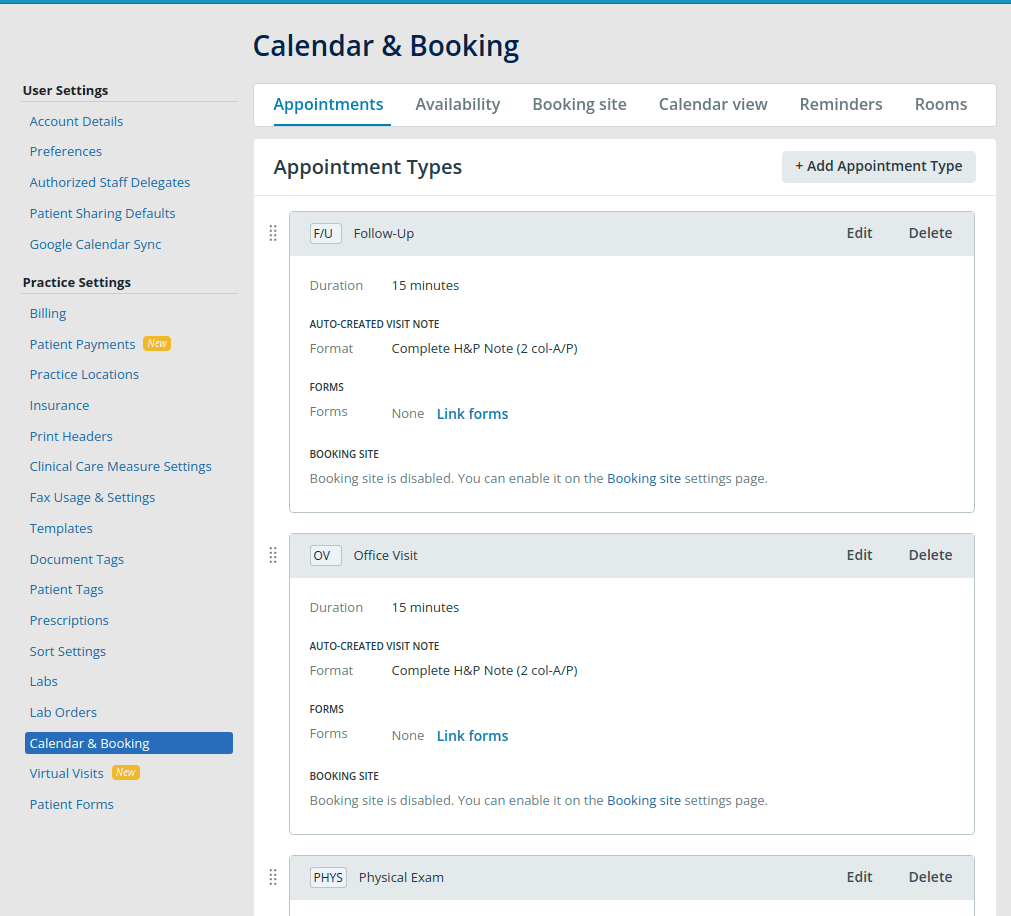
Patientis the patient ID.Physicianis the physician ID (seeFind Physician)Practiceis the practice ID (again, seeFind Physician)
You can also include a duration (default to 15 minutes, or whatever has been set in your EHR)
Create care gap
Create a care gap in Elation.
This action can be previewed in Studio before you publish.
| Input | Type | Required | Description |
|---|---|---|---|
| Quality Program | string | Yes | — |
| Definition ID | string | Yes | — |
| Patient ID | string | Yes | — |
| Practice ID | string | Yes | — |
| Created date | date | Yes | — |
| Status | string | Yes | One of: Open, Closed. |
| Detail | text | No | — |
Returns:
| Data point | Type |
|---|---|
id | string |
Create lab order
A lab order represents an order for a patient to perform some lab tests for a vendor.
This action can be previewed in Studio before you publish.
| Input | Type | Required | Description |
|---|---|---|---|
| Patient ID | numeric | Yes | The ID of the patient for whom the lab order is being created. |
| Practice | numeric | Yes | The ID of the practice for which the lab order is being created. |
| Document Date | date | Yes | The date and time of the lab order document. |
| Ordering Physician ID | numeric | Yes | The ID of the physician who is creating the order. |
| Vendor ID | numeric | No | The ID of the vendor (or Lab) associated with the lab order. |
| Content | json | No | Represents the content of the lab order report. Should be in JSON format. See https://docs.elationhealth.com/reference/the-lab-order-content-object |
| Site ID | numeric | No | The location where the patient will have the lab performed. Sites are specific to their lab vendor |
| Confidential | boolean | No | Defaults to false. Whether the provider has marked the order as confidential. Should not be shared with a patient. |
Returns:
| Data point | Type |
|---|---|
labOrderId | number |
printableLabOrderView | string |
Create Message Thread
Create a message thread in Elation's messaging system.
This action can be previewed in Studio before you publish.
| Input | Type | Required | Description |
|---|---|---|---|
| Patient ID | numeric | Yes | The patient for which the thread is about |
| Sender ID | numeric | Yes | The ID of the user initiating the message thread |
| Practice ID | numeric | Yes | The practice associated with the patient chart |
| Document Date | date | No | Defaults to today’s date if not provided |
| Chart Date | date | No | Defaults to today’s date if not provided |
| Message Body | text | Yes | The content of the initial message in the thread |
| Recipient ID | numeric | No | A user ID of the recipient of the message. They will be added as a member to the thread. |
| Group ID | numeric | No | The ID of a group that will be added as a member to the thread. |
| Urgent | boolean | No | Marks the message thread as urgent if true. Defaults to false. |
Returns:
| Data point | Type |
|---|---|
messageThreadId | number |
Create Non-Visit Note
Create a Non-Visit Note using Elation's patient API.
This action can be previewed in Studio before you publish.
| Input | Type | Required | Description |
|---|---|---|---|
| Patient ID | numeric | Yes | — |
| Author | numeric | Yes | The author of a note. Should be the ID of a User in Elation. |
| Category | string | No | The Category of a note, defaults to "Problem". Read the extension documentation for the list of possible values. |
| Tags | string | No | Comma-separated list of tags IDs |
| Text | text | Yes | Text of a note |
Returns:
| Data point | Type |
|---|---|
nonVisitNoteBulletId | number |
nonVisitNoteId | number |
The non-visit note is a special kind of note that, as the name suggests, is not associated with a visit. These notes, in their simplest form, provide a chronological account of information about the patient.
Additional documentation for some of the action fields:
- Category: The default category is "Problem" but you can choose any of "Past", "Family", "Social", "Instr", "PE", "ROS", "Med", "Data", "Assessment", "Test", "Tx", "Narrative", "Followup", "Reason", "Plan", "Objective", "Hpi", "Allergies", "Habits", "Assessplan", "Consultant", "Attending", "Dateprocedure", "Surgical", "Orders", "Referenced", "Procedure".
- Chart and document date automatically get set to the current date, i.e. the date when the action is orchestrated.
Create Patient
Create a patient profile using Elation's patient API.
This action can be previewed in Studio before you publish.
| Input | Type | Required | Description |
|---|---|---|---|
| First name | string | Yes | — |
| Last name | string | Yes | — |
| Date of Birth | date | Yes | — |
| Sex | string | Yes | Possible values are 'Male', 'Female', 'Other', 'Unknown' |
| Primary Physician ID | numeric | Yes | The ID of the primary physician associated to the patient |
| Caregiver Practice ID | numeric | Yes | — |
string | No | — | |
| Mobile phone | string | No | The number will be stored in US national format in Elation |
| Middle Name | string | No | — |
| Actual Name | string | No | — |
| Gender identity | string | No | Possible values are 'unknown', 'man', 'woman', 'transgender_man', 'transgender_woman', 'nonbinary', 'option_not_listed', 'prefer_not_to_say', 'two_spirit' |
| Legal gender marker | string | No | Possible values are 'M', 'F', 'X', 'U' |
| Pronouns | string | No | Pronouns by which a patient identifies self. Possible values are 'he_him_his', 'she_her_hers', 'they_them_theirs', 'not_listed' |
| Sexual orientation | string | No | Possible values are 'unknown', 'straight', 'gay', 'bisexual', 'option_not_listed', 'prefer_not_to_say', 'lesbian', 'queer', 'asexual' |
| SSN | string | No | The Social Security number of the patient |
| Ethnicity | string | No | Possible values are 'No ethnicity specified', 'Hispanic or Latino', 'Not Hispanic or Latino', 'Declined to specify'. |
| Race | string | No | Possible values are 'No race specified', 'American Indian or Alaska Native', 'Asian', 'Black or African American', 'Native Hawaiian or Other Pacific Islander', 'White', 'Declined to specify'. |
| Preferred language | string | No | Full names e.g. 'English', 'Spanish' or 'French'. |
| Notes | string | No | Additional notes about the patient |
| Previous first name | string | No | The previous first name of the patient |
| Previous last name | string | No | The previous last name of the patient |
| Tags | string | No | The tags associated with the patient. Separate multiple tags with a comma (max 10 per patient). |
Returns:
| Data point | Type |
|---|---|
patientId | number |
This action creates a patient in Elation.
When creating a patient, you will have to specifiy the primary physician and caregiver practice ID:
- Primary physician ID: you can retrieve this ID by using the Find Physicians API call, or by using the
Find Physicianaction - Caregiver Practice ID: similar to the primary physician ID, you can find this ID by using the same API call or action
If the Elation API throws an error indicating the patient with the provided information already exists, the action will succeed and the ID of the existing patient will be returned.
Create referral order
Create a referral order in Elation.
This action can be previewed in Studio before you publish.
| Input | Type | Required | Description |
|---|---|---|---|
| Patient ID | numeric | Yes | — |
| Practice ID | numeric | Yes | — |
| Contact name | string | Yes | — |
| Body | text | Yes | — |
| Authorization for | string | Yes | One of: Referral For Treatment, includes Consult Visit, Procedure / Testing Only, Consult (One Visit Only). |
| Consultant name | string | Yes | — |
| Specialty | string | No | — |
Returns:
| Data point | Type |
|---|---|
id | number |
Create Visit Note
Create a visit note for a patient. This action will create a visit note in the patient chart.
This action can be previewed in Studio before you publish.
| Input | Type | Required | Description |
|---|---|---|---|
| Patient ID | numeric | Yes | — |
| Template | string | Yes | Visit note template. Supports "Complete H&P (1 col)" and "Simple". One of: Complete H&P (1 col), Simple. |
| Category | string | Yes | Bullet category. Supports "ROS" and "Narrative". One of: ROS, Narrative. |
| Physician ID | numeric | Yes | Prescribing physician ID |
| Author | numeric | Yes | The author of a note. Should be the ID of a User in Elation. |
| Text | text | Yes | Text of a note |
| Type | string | No | Type of visit note. Defaults to Office Visit Note. |
| Confidential | boolean | No | Whether this note is confidential to the practice and shouldn`t be shared automatically with third parties. Defaults to false. |
Returns:
| Data point | Type |
|---|---|
visitNoteId | number |
Delete Non-Visit Note
Delete a Non-Visit Note using Elation's patient API.
This action can be previewed in Studio before you publish.
| Input | Type | Required | Description |
|---|---|---|---|
| Non-Visit Note ID | numeric | Yes | ID of the note to delete |
Deletes the non-visit note identified by an ID.
Find Appointment
Retrieve appointments for a given patient, physician, practice, and/or times
This action can be previewed in Studio before you publish, and retries automatically on a transient failure.
| Input | Type | Required | Description |
|---|---|---|---|
| Patient ID | numeric | Yes | Patient ID |
| Physician ID | numeric | No | Physician ID |
| Practice ID | numeric | No | Practice ID |
| From Date | date | No | Date from which to filter appointments |
| To date | date | No | Date to which appointments are filtered |
| Event Type | string | No | Event Type (appointment or leave empty) |
Returns:
| Data point | Type |
|---|---|
appointment_exists | boolean |
appointments | json |
✨ Find Appointments
Find all appointments for a patient using natural language.
This action can be previewed in Studio before you publish, and retries automatically on a transient failure.
| Input | Type | Required | Description |
|---|---|---|---|
| Elation patient ID | numeric | Yes | — |
| Describe the appointments to search for | text | Yes | Provide clear instructions about what appointments you want to find. You can search by appointment type (e.g. "Find all PCP visits"), status (e.g., "Find scheduled appointments"), or other criteria. Be as specific as possible for best results. |
Returns:
| Data point | Type |
|---|---|
appointmentCountsByStatus | json |
appointments | json |
appointmentsFound | boolean |
explanation | string |
This AI-powered action finds **all appointments for a patient based on a prompt in natural language. Want to know how many mental health sessions someone has had this year? Just ask — AI returns them all.
How it works:
- All appointments, independent of their date or status, for the patient are retrieved from Elation.
- Based on the provided prompt, an LLM tries to find all appointments from the list of appointments that match the prompt.
What it needs (Inputs):
Elation patient ID(Required): The numeric ID of the patient in Elation whose appointments you want to search.Describe the appointments to search for(Required): A natural language description of the appointments you're looking for. Be as specific as possible about appointment types, timing, status, or other criteria.
What it gives back (Outputs):
Appointments: Array of appointment objects that match your search criteria (in JSON format).Explanation: A detailed explanation of why these appointments were selected, including the reasoning behind the matches.Appointment Counts By Status: A summary of how many matching appointments were found in each status category (e.g., "Scheduled": 2, "Completed": 1).
Tips for best results:
- When you know exactly what to match (status, appointment type), put it in quotes (e.g., '"Scheduled"', '"Office Visit"') for exact matching.
- For other criteria where you're less certain, provide descriptive instructions without quotes.
- Include specific time ranges, such as "all appointments in 2023" or "appointments from January to March" when relevant.
- Filter by appointment status: "Cancelled," "Completed," "Scheduled," or "Confirmed" when relevant.
- Be clear and specific in your instructions and avoid ambiguity - this is critical for getting accurate results.
Example**:
Input:
  Elation patient ID: 12345
  Describe the appointments to search for: "Find all completed appointments with type 'Physical Exam' in the last 6 months"

Output:
  Appointments: [
    {
      "id": 67890,
      "scheduled_date": "2023-06-10T13:00:00Z",
      "status": {
        "status": "Completed"
      },
      "reason": "Physical Exam",
      "mode": "IN_PERSON"
    },
    {
      "id": 67891,
      "scheduled_date": "2023-03-15T09:30:00Z",
      "status": {
        "status": "Completed"
      },
      "reason": "Physical Exam",
      "mode": "IN_PERSON"
    }
  ]
  Explanation: "I found 2 completed physical exam appointments in the last 6 months. The first appointment was on June 10, 2023, and the second appointment was on March 15, 2023. Both appointments were in-person and are marked as completed in the system."
  Appointment Counts By Status: {
    "Completed": 2
  }
✨ Find Future Appointment
Find a future appointment in Elation.
This action can be previewed in Studio before you publish, and retries automatically on a transient failure.
| Input | Type | Required | Description |
|---|---|---|---|
| Elation patient ID | numeric | Yes | — |
| Describe what appointment you would like to find | text | Yes | — |
Returns:
| Data point | Type |
|---|---|
appointment | json |
appointmentExists | boolean |
explanation | string |
This AI-powered action finds a **single future appointment for a patient based on a prompt in natural language. Just type something like "next cardiology appointment" — AI figures it out and finds the matching appointment for you.
How it works:
- All future appointments with status
ScheduledorConfirmedfor the patient are retrieved from Elation. - Based on the provided prompt, an LLM tries to find a single appointment from the list of future appointments that matches the prompt.
- If multiple appointments exist that match the instructions, only the first one is returned.
What it needs (Inputs):
Elation patient ID(Required): The numeric ID of the patient in Elation whose appointments you want to search.Describe what appointment you would like to find(Required): A natural language description of the appointment you're looking for. Be as specific as possible about the type, status, timing, or any other important aspect for your use case.
What it gives back (Outputs):
Appointment: The complete appointment data in JSON format (if found).Appointment Exists: Boolean indicator (true/false) of whether a matching appointment was found.Explanation: A clear explanation of why the selected appointment was chosen or why no appointment was found.
Tips for best results:
- Include specific details about the appointment type, status, or purpose in your description.
- Use single or double quotes for exact matches. For example, if you search for '"Physical Exam"', the action will search for appointments with that exact appointment type (with small variations physical exams, Physical exam).
- When you know exactly what to match (status, physician name, appointment type), put it in quotes (e.g., '"Scheduled"', '"Follow-Up"') for exact matching.
- For other criteria where you're less certain, provide descriptive instructions without quotes, for example all physical exams - then AI action will try to find all exams that can be classified as physical exams.
- Time-based instructions work well, such as "next week," "this month," or "next Thursday."
- If multiple appointments match your criteria, only the first one will be returned.
- Be clear and specific in your instructions to avoid ambiguity - this is critical for getting accurate results.
Example**:
Input:
  Elation patient ID: 12345
  Describe what appointment you would like to find: "Find my next video appointment with status 'Confirmed' for 'Follow-Up'"

Output:
  Appointment: {
    "id": 67890,
    "scheduled_date": "2023-08-15T14:30:00Z",
    "status": {
      "status": "Confirmed"
    },
    "mode": "VIDEO",
    "reason": "Follow-Up"
  }
  Appointment Exists: true
  Explanation: "I found a video appointment scheduled for August 15, 2023 at 2:30 PM. The appointment is confirmed and is for a Follow-Up visit, which matches your search criteria. This is the earliest upcoming confirmed video appointment for a follow-up."
Find Physician
Retrieve a physician using Elation's patient API.
This action can be previewed in Studio before you publish, and retries automatically on a transient failure.
| Input | Type | Required | Description |
|---|---|---|---|
| First Name | string | No | First Name to search for. |
| Last Name | string | No | Last Name to search for. |
| NPI (National Provider Identifier) | string | No | NPI to search for. |
Returns:
| Data point | Type |
|---|---|
caregiverPracticeId | number |
physicianCredentials | string |
physicianEmail | string |
physicianFirstName | string |
physicianId | number |
physicianLastName | string |
physicianNPI | string |
physicianUserId | number |
Get Appointment
Retrieve an appointment using Elation's scheduling API.
This action can be previewed in Studio before you publish, and retries automatically on a transient failure.
| Input | Type | Required | Description |
|---|---|---|---|
| Appointment ID | numeric | Yes | Provide the ID of the appointment you want to fetch the details of |
Returns:
| Data point | Type |
|---|---|
appointment | json |
description | string |
duration | number |
patientId | number |
physicianId | number |
practiceId | number |
reason | string |
scheduledDate | date |
serviceLocationId | number |
status | json |
statusString | string |
telehealthDetails | string |
Retrieve appointment details using an appointment ID.
Get letter
Retrieve a letter from Elation.
This action can be previewed in Studio before you publish, and retries automatically on a transient failure.
| Input | Type | Required | Description |
|---|---|---|---|
| Letter ID | numeric | Yes | — |
Returns:
| Data point | Type |
|---|---|
body | string |
signedBy | number |
Get Non-Visit Note
Get a Non-Visit Note using Elation's patient API.
This action can be previewed in Studio before you publish, and retries automatically on a transient failure.
| Input | Type | Required | Description |
|---|---|---|---|
| Non-Visit Note ID | numeric | Yes | ID of a note |
Returns:
| Data point | Type |
|---|---|
authorId | number |
chartDate | date |
documentDate | date |
patientId | number |
practiceId | number |
tags | string |
text | string |
Retrieve the details of a non-visit note identified by an ID.
Get Patient
Retrieve a patient profile using Elation`s patient API.
This action can be previewed in Studio before you publish, and retries automatically on a transient failure.
| Input | Type | Required | Description |
|---|---|---|---|
| Patient ID | numeric | Yes | The Elation patient ID |
Returns:
| Data point | Type |
|---|---|
actualName | string |
caregiverPracticeId | number |
dob | date |
email | string |
ethnicity | string |
firstName | string |
genderIdentity | string |
lastName | string |
legalGenderMarker | string |
mainPhone | telephone |
middleName | string |
mobilePhone | telephone |
notes | string |
patientObject | json |
preferredLanguage | string |
preferredServiceLocationId | number |
previousFirstName | string |
previousLastName | string |
primaryPhysicianId | number |
pronouns | string |
race | string |
sex | string |
sexualOrientation | string |
ssn | string |
status | string |
Using a patient identifier, retrieve a patient object from Elation.
Note that when retrieve the mobile phone number, we are tranforming the number to an international format. We apply a heuristic and assume all mobile numbers in Elation are in US national format so we prepend the number with the +1 country code. Having the number in international format unlocks more powerful functionality like sending text messages with 3rd party services like Twilio and MessageBird.
Get Pharmacy
Retrieve a pharmacy profile using Elation's pharmacies API
This action can be previewed in Studio before you publish, and retries automatically on a transient failure.
| Input | Type | Required | Description |
|---|---|---|---|
| NCPDP ID | string | Yes | The NCPDP ID of the pharmacy |
Returns:
| Data point | Type |
|---|---|
addressOne | string |
addressTwo | string |
city | string |
name | string |
pharmacyObject | json |
phone | telephone |
state | string |
zip | string |
Get Physician
Retrieve a physician using Elation's patient API.
This action can be previewed in Studio before you publish, and retries automatically on a transient failure.
| Input | Type | Required | Description |
|---|---|---|---|
| Physician ID | numeric | Yes | — |
Returns:
| Data point | Type |
|---|---|
caregiverPracticeId | number |
physicianCredentials | string |
physicianEmail | string |
physicianFirstName | string |
physicianLastName | string |
physicianNPI | string |
physicianUserId | number |
Using a physician identifier, retrieve a physician object from Elation.
Get referral order
Retrieve a referral order from Elation.
This action can be previewed in Studio before you publish, and retries automatically on a transient failure.
| Input | Type | Required | Description |
|---|---|---|---|
| Referral Order ID | numeric | Yes | — |
Returns:
| Data point | Type |
|---|---|
consultantName | string |
diagnosisCodes | strings_array |
diagnosisLabels | strings_array |
letterId | string |
patientId | number |
practice | number |
Post letter
Post a letter using Elation's patient API.
This action can be previewed in Studio before you publish.
| Input | Type | Required | Description |
|---|---|---|---|
| Patient ID | numeric | Yes | ID of the patient |
| Practice | numeric | Yes | ID of a Practice |
| Referral Order ID | numeric | No | Id of the Referral Order (Not needed with subject) |
| Subject | string | No | Subject of the letter (Not needed with referral order) |
| Body | text | Yes | Body of the letter |
| Contact NPI code | string | Yes | NPI of the contact whom you want to send this letter |
| Type of letter | string | No | Type of letter. Defaults to "provider". The type can be one of the following: "patient", "referral", "provider" or "patient_initiated". |
Returns:
| Data point | Type |
|---|---|
letterId | number |
Sign non-visit note
Sign a non-visit note in Elation.
This action can be previewed in Studio before you publish.
| Input | Type | Required | Description |
|---|---|---|---|
| Non-Visit Note ID | numeric | Yes | — |
| Signed by | numeric | Yes | The ID of a physician or office staff who signs the note. Note: it has to be a physician ID, or an office staff ID, not a user ID. |
Sign visit note
Sign a visit note in Elation.
This action can be previewed in Studio before you publish.
| Input | Type | Required | Description |
|---|---|---|---|
| Visit Note ID | numeric | Yes | — |
| Signed by | numeric | Yes | The ID of a physician or office staff who signs the note. Note: it has to be a physician ID, or an office staff ID, not a user ID. |
Update Non-Visit Note
Update a Non-Visit Note using Elation's patient API.
This action can be previewed in Studio before you publish.
| Input | Type | Required | Description |
|---|---|---|---|
| Non-Visit Note ID | numeric | Yes | ID of a note. |
| Non-Visit Note Bullet ID | numeric | No | ID of a bullet in a note. Required when want to edit text, author or category of a note. |
| Text | text | No | Text of a note. Required when "Bullet ID" is provided. |
| Author | numeric | No | Author of a note. Should be ID of a User. Required when "Bullet ID" is provided. |
| Patient | numeric | No | ID of a Patient |
| Category | string | No | Category of a note. Defaults to "Problem". One from the list: "Problem", "Past", "Family", "Social", "Instr", "PE", "ROS", "Med", "Data", "Assessment", "Test", "Tx", "Narrative", "Followup", "Reason", "Plan", "Objective", "Hpi", "Allergies", "Habits", "Assessplan", "Consultant", "Attending", "Dateprocedure", "Surgical", "Orders", "Referenced", "Procedure". |
| Practice | numeric | No | ID of a Practice. |
| Document Date | date | No | Date in ISO 8601 format. |
| Chart Date | date | No | Date in ISO 8601 format. |
| Tags | string | No | Comma-separated list of tags IDs. |
| Signed by (user ID) | numeric | No | ⚠️ DEPRECATED - Please use the "Sign non-visit note" action to sign a non-visit note instead. |
Update Patient
Update a patient profile using Elation's patient API.
This action can be previewed in Studio before you publish.
| Input | Type | Required | Description |
|---|---|---|---|
| Patient ID | numeric | Yes | The ID of the patient in Elation |
| First Name | string | No | — |
| Last Name | string | No | — |
| Date of Birth | date | No | YYYY-MM-DD |
| Sex | string | No | Possible values are 'Male', 'Female', 'Other', 'Unknown' |
| Primary Physician ID | numeric | No | The ID of the primary physician associated to the patient |
| Caregiver Practice ID | numeric | No | — |
| Middle Name | string | No | — |
| Actual Name | string | No | — |
| Gender identity | string | No | Possible values are 'unknown', 'man', 'woman', 'transgender_man', 'transgender_woman', 'nonbinary', 'option_not_listed', 'prefer_not_to_say', 'two_spirit' |
| Legal gender marker | string | No | Possible values are 'M', 'F', 'X', 'U' |
| Pronouns | string | No | Possible values are 'he_him_his', 'she_her_hers', 'they_them_theirs', 'not_listed' |
| Sexual orientation | string | No | Possible values are 'unknown', 'straight', 'gay', 'bisexual', 'option_not_listed', 'prefer_not_to_say', 'lesbian', 'queer', 'asexual' |
| SSN | string | No | The Social Security number of the patient |
| Ethnicity | string | No | Possible values are 'No ethnicity specified', 'Hispanic or Latino', 'Not Hispanic or Latino', 'Declined to specify'. |
| Race | string | No | Possible values are 'No race specified', 'American Indian or Alaska Native', 'Asian', 'Black or African American', 'Native Hawaiian or Other Pacific Islander', 'White', 'Declined to specify'. |
| Preferred language | string | No | Full names e.g. 'English', 'Spanish' or 'French'. |
| Notes | string | No | Additional notes about the patient. |
| Previous first name | string | No | The previous first name of the patient |
| Previous last name | string | No | The previous last name of the patient |
| Status | string | No | The status of the patient (active, deceased, inactive, prospect) |
| Tags | string | No | The tags associated with the patient. Separate multiple tags with a comma (max 10 per patient). |
Update a patient in Elation using any fields available in create patient. We use Elation's PATCH method to apply partial modifications to a the patient resource (i.e. update only what is needed).
✨ Update Patient Tags
Update patient tags in Elation.
This action can be previewed in Studio before you publish.
| Input | Type | Required | Description |
|---|---|---|---|
| Elation patient ID | numeric | Yes | — |
| Specify tags to add, remove, or modify | text | Yes | Provide clear instructions for tag changes and relevant context, especially for uncommon tags. Specify new tags in single quotes (e.g., 'Patient-Tag'). |
Returns:
| Data point | Type |
|---|---|
explanation | string |
updatedTags | string |
This AI-powered action uses AI to manage patient tags in Elation based on natural language instructions. Want to mark someone for special attention? Just say it, and AI updates their tags in Elation.
**How it works:
- Retrieves existing patient tags from Elation
- Uses an LLM to interpret natural language instructions and determine required tag changes
- Updates patient tags in Elation according to the interpreted changes
What it needs (Inputs):
Elation patient ID(Required): The numeric ID of the patient in Elation whose tags you want to update.Specify tags to add, remove, or modify(Required): Natural language instructions explaining what tag changes you want to make. Be specific about which tags to add, remove, or modify.
What it gives back (Outputs):
Updated Tags: A comma-separated list of all patient tags after your requested changes have been applied.Explanation: A detailed explanation of what changes were made to the tags and why.
Tips for best results:
- When specifying new tags to add, use single quotes around tag names (e.g., 'Diabetes', 'High-Risk') for exact matching.
- Case sensitivity and exact spelling matter when using quotes - 'Diabetes' and 'diabetes' will be treated as different tags.
- Be explicit about which tags to remove or replace (e.g., "Remove the 'Temporary' tag").
- You can include context to help the AI understand why tags are being modified.
- To clear all tags, you can say "Remove all tags" or "Clear all existing tags."
- Due to Elation API limitations, clearing all tags is implemented by setting a single space tag (' '). This is the recommended workaround from Elation's team.
- Tags must already exist in your Elation database to be added.
- Be clear and specific in your instructions to avoid ambiguity - this is critical for getting accurate results.
Example**:
Input:
  Elation patient ID: 12345
  Specify tags to add, remove, or modify: "Add the tags 'Diabetes' and 'CCM Program'. Remove the 'Inactive' tag if it exists."

Output:
  Updated Tags: "Diabetes, CCM Program, Hypertension"
  Explanation: "I've made the following changes to the patient's tags:
  1. Added 'Diabetes' tag as requested
  2. Added 'CCM Program' tag as requested
  3. No 'Inactive' tag was found, so no removal was necessary
  4. The existing 'Hypertension' tag was preserved"
Update referral order resolution
Update the resolution of a referral order in Elation.
This action can be previewed in Studio before you publish.
| Input | Type | Required | Description |
|---|---|---|---|
| Referral Order ID | numeric | Yes | — |
| Resolution state | string | Yes | One of: Outstanding, Fulfilled, Cancelled. |
| Resolving document | numeric | Yes | The ID of the document that resolves the referral order. Can be f.e. a reference to a non-visit note. Required if the resolution state is "fulfilled". |
Webhooks
Elation can send these 2 events into Awell, where each one can start a care flow or move a patient along. Point the webhook at the URL Studio shows you when you enable it.
appointmentCreatedOrUpdated
Payload:
| Data point | Type |
|---|---|
appointment | json |
appointmentId | number |
patientCreatedOrUpdated
Payload:
| Data point | Type |
|---|---|
patient | json |
patientId | number |
Waiting on a result
These actions can pause a care flow until the other system reports back.
| Event | Action | What it waits for |
|---|---|---|
lab_order.signed | createLabOrder | Wait for lab order to be signed |
Setup and notes
Elation is a cloud-based health record system designed for healthcare providers, clinics, and medical practices. It offers a range of features including patient scheduling, charting, e-prescribing, billing, and telemedicine. Overall, Elation is designed to streamline the workflow of medical practices, improve patient care, and increase efficiency.
Setup
Webhooks
The integration of webhooks with Elation presents unique challenges and considerations:
- **Non-Discriminative Triggers: Elation does not differentiate between the creation or update of a resource. Both actions will set off webhook with action
saved, which might not provide enough discriminative information for some use cases. - Programmatic Setup: Elation webhooks can only be configured programmatically, as there's no dedicated user interface in Elation to set up webhooks. View this demo video for a step-by-step guide on how to set up your webhooks in Elation.
- Limitation on user-triggered actions**: Elation has a concept called "Preventing echo". This means that that any action carried out by the user affiliated with the API credentials that created the subscription doesn't trigger a webhook. You can read more about this behaviour here. If you are not receiving any webhooks from Elation after setting up your subscription, then this is the reason. A feasible workaround to the above limitation is creating a dedicated user not meant for human interactions but serves the sole purpose of facilitating M2M communication.
If you need help setting up your webhooks in Elation, reach out! We are happy to help you.
Extension settings
In order to use this extension you will need to provide the extension with the following settings:
- Base URL / endpoint URL of the API
- Authorization URL
- Client ID for OAuth2 Password authentication
- Client Secret for OAuth2 Password authentication
- API Username for OAuth2 Password authentication
- API Password for OAuth2 Password authentication
Not sure where you can find all of this information? Click here to have a look at Elation's Developer documentation.
The following actions are supported with Elation today:
Find physicians
Search a physician based on a set of parameters. The ID of the physician matching the search parameters will be returned. To retrieve the details of the physician, you can use the the "Get physician" action.
Note that this action can only support finding one physician so if your search criteria match multiple physicians the action will throw an error.
Changelog
January 30, 2024
- New actions
- Post letter: Using patient and practice identifier, post a new letter to either Provider, Patient or associate it with an existing Referral.
October 3, 2023
- The README is now more concise with less unneeded detail. A section on the particularities of Elation subscriptions (webhooks) was added.
- Misc. updates to labels, descriptions, action fields order
- Action updates
- Create Non-Visit Note:
- Simplify the action by removing some optional action fields (we can always expand later)
document_dateandchart_dateare now automatically set to the date of today so that the corresponding action fields could be removed
- Create patient
dobis now adatefield type (was a string)- You can pass a mobile phone number and email when creating a patient
- Find physician
- Only returns the physician ID instead of all the details of the physician. To retrieve the details one can use the new
Get physicianaction
- Only returns the physician ID instead of all the details of the physician. To retrieve the details one can use the new
- Update patient
dobis now adatefield type (was a string)- We are now using
PATCHinstead ofPUTwhich allows for a partial update, i.e. only update the fields that are needed.
- Create Non-Visit Note:
- New actions
- Get physician: Using a physician identifier, retrieve a physician object from Elation.
- Removed actions
- Update Non-Visit Note
- Webhooks
- Fix the type of
patientIdinpatientCreatedOrUpdatedwebhook - Added
appointmentCreatedOrUpdatedwebhook
- Fix the type of
September 4, 2023
- rename
onCreatePatientwebhook topatientCreatedOrUpdated - filter non
savedactions for this webhook
August 21, 2023
- make non-visit note text a large input (
StringType.TEXT)
May 23, 2024
- add patient_status.status to patient object in getPatient action
- add status to updatePatient action
Where this page comes from
The settings, actions, inputs, outputs and webhooks above are generated from the
extension's own code, at @awell-health/awell-extensions v2.1.159. They match what the
platform actually does rather than a description of it.
Field-level detail also appears in Awell Studio when you configure the action. Something wrong or missing? Email support@awellhealth.com.