
Add a sticky note
Leave yourself or a colleague a reminder on the canvas about an open question, with no effect on how the care flow runs.
Building a care flow raises questions that can't be answered yet. A sticky note parks one on the canvas so it isn't lost.
Sticky notes have no effect on the care flow. They don't run, they don't gate anything, and they can be added or removed at any time, including after the flow is live.
Add and edit a sticky note
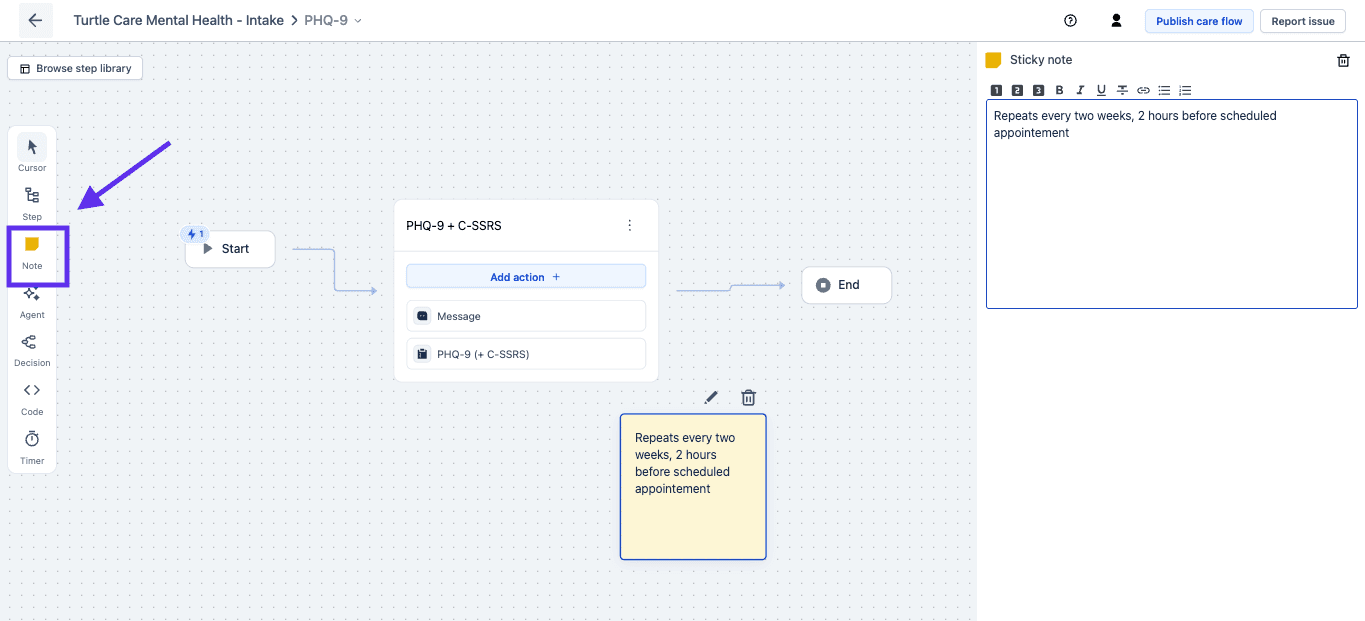
- In the track builder, open the step library and select New sticky note.
- Drag it onto the canvas, or use Ctrl + P.
- Double-click it. The side pane opens, ready to type in.
- To delete it, click the note and then the trash icon.
Use them for questions, not answers
A sticky note is the right place for "check with pharmacy whether this dose is right" and the wrong place for "this step exists because of the 2024 protocol change". The second one is documentation, and it should outlive the build.
Clear notes as they're resolved, or the canvas fills up with questions that already have answers.
Next steps
Next: Monolithic vs modular care flow design for where to draw the boundaries between tracks and between care flows.
Add documentation to your care flow
Record why a care flow is built the way it is, so the clinicians who use it later understand the reasoning behind it.
Enrich your care flow with baseline data
Pass information from another system into a care flow at start or at runtime, and avoid the optional data point that halts a flow without an error.