
Control when messages and forms expire
Skip a message or form automatically after a set period so late responses don't land in the wrong follow-up, and know when not to use expiration.
In a care flow that runs for months, patients don't always answer on time. A "month 1 follow-up" completed in month 3 can write its data into the wrong place, which is worse than not collecting it.
Action expiration skips a message or form automatically once a period has passed.
Turn expiration on and set a timeframe
- Open a Message or Form action in the care flow.
- Scroll to the bottom of the action configuration.
- Toggle on Enable action expiration.
- Set the timeframe: a value and a unit (minutes, hours, days, weeks, months, years).
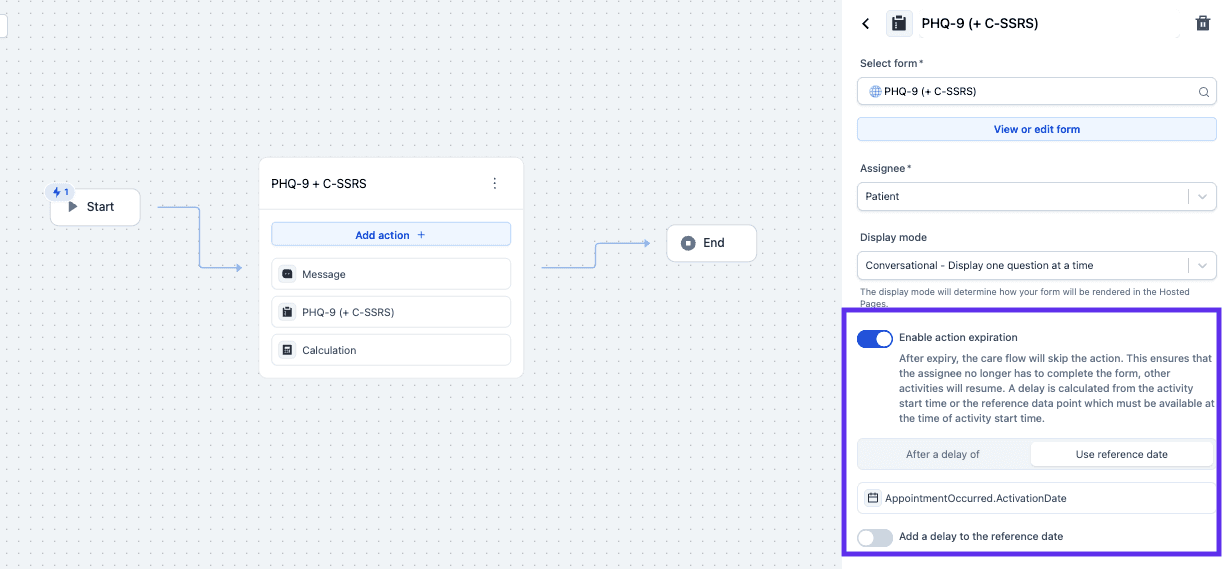
Expiry can count from the activity's start time or from a reference date held in a data point, which has to be available when the activity starts.
Don't expire a form the flow's logic depends on
Where a form collects a data point used in conditional logic or as a timing reference later, expiring it leaves that data point empty, and the logic that reads it fails.
The flow doesn't error; it takes the wrong branch or waits forever. Before expiring a form, check whether anything downstream reads what it collects.
Expiration suits reminders, optional check-ins, and anything time-sensitive enough to be pointless late, but not intake forms.
Expired actions show as expired in the activity feed
Awell handles expiration itself, so a care team can tell "the patient didn't respond" apart from "still waiting".
Next steps
Collecting the data in the first place is covered in the forms pages of this section.