
Add a custom action to a step
Use an installed extension's action in a care flow, and choose whether to store what it returns as data points.
Once an extension is installed, its actions appear in Studio alongside Awell's native ones.
Install the extension before adding its action. See Integrate with extensions.
Add the action
- Double-click the step that will hold it.
- Click Add action and choose the custom action from the list.
- Name the action so a colleague can tell what it does.
- Configure its fields. Which fields exist depends on the extension.
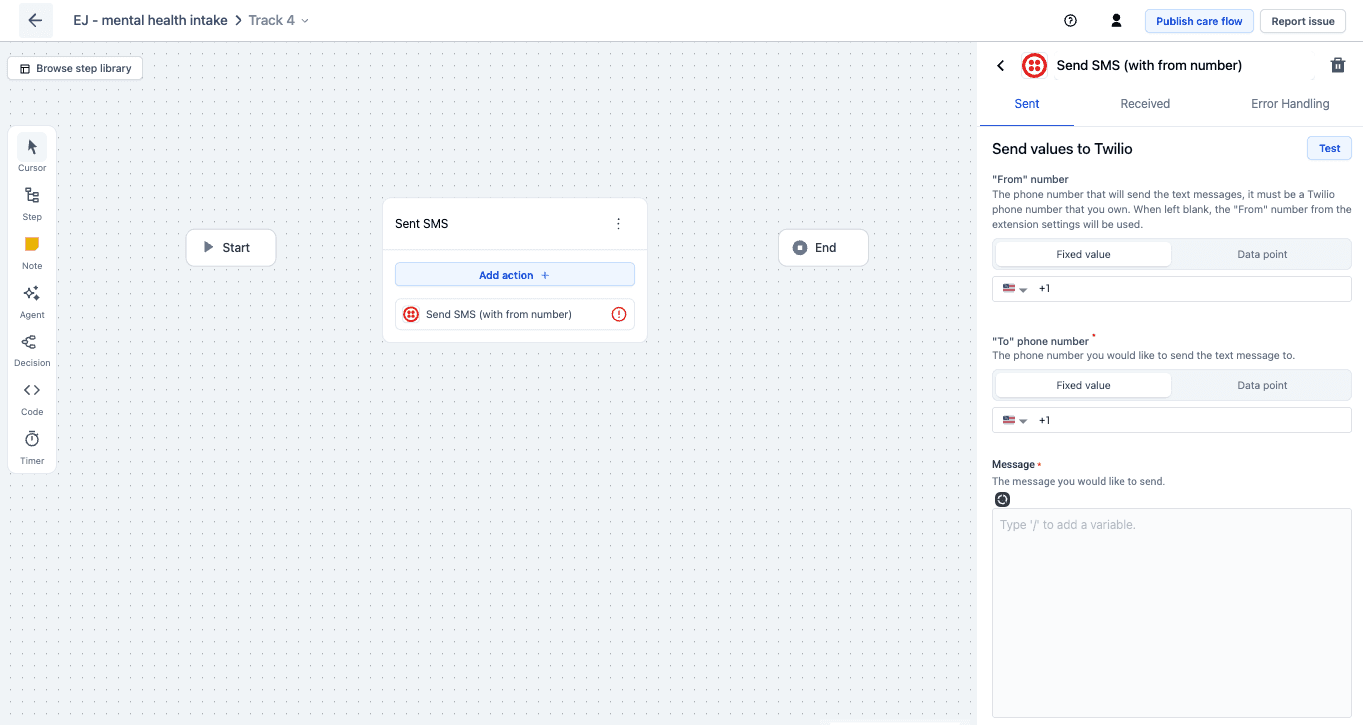
Each field takes either a fixed value or a data point, so the same action can be static for one care flow and patient-specific in another.
Store the response when the care flow needs the result
Without data points, only the side effect happens
The action does its job and the care flow moves on. This is enough where only the side effect matters: a text message was sent, a record was created.
With data points, the flow can react
The action's response is written into data points, so the rest of the care flow can use it. The flow can then branch on the result, put it in a message, or pass it to a later action.
An appointment date the action fetches but doesn't store can't be used later in the care flow, and the flow can't react when the result is wrong.
Next steps
- Use variables in your actions to put stored values into messages.
- Build your own extension if the action needed doesn't exist.
Checklist
Give a care team member or patient a list of tasks to tick off inside a care flow, with a separate checklist per stakeholder if needed.
Control when messages and forms expire
Skip a message or form automatically after a set period so late responses don't land in the wrong follow-up, and know when not to use expiration.