
Team, roles and permissions
Invite team members, manage their access, and see exactly which actions each role allows.
Awell controls what people can see and do through roles. This page covers inviting people, managing them, and what each role allows.
Invite a team member
As an Org Admin:
- Open Settings, at the bottom of the left navigation.
- Open the Team tab.
- Click Add team member.
- Fill in their personal details and email address.
- Click Send invite.
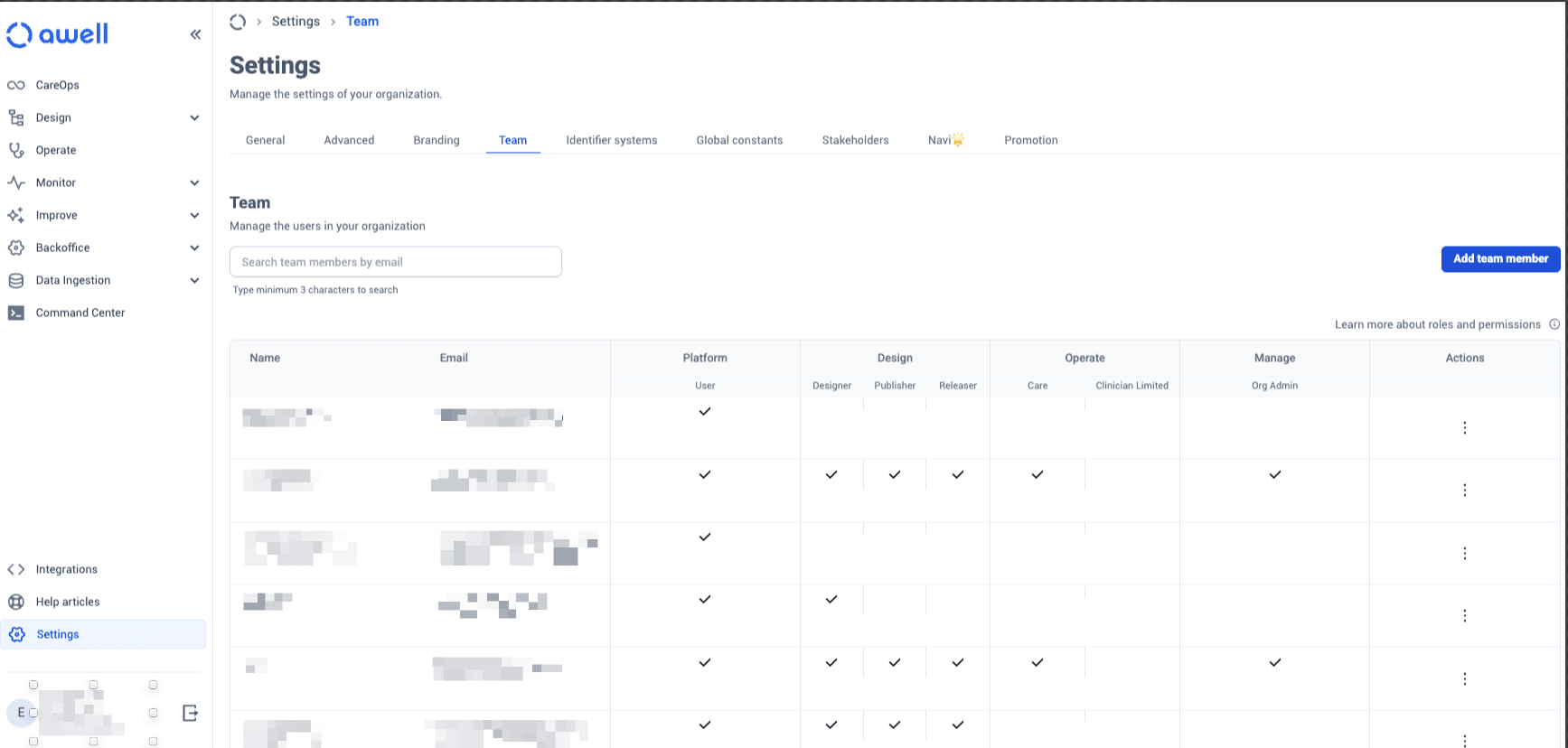
Roles are columns, not a single choice, so one person can hold several at once.
An email address cannot be changed after the profile is created. The email uniquely identifies the team member, and changing it would create inconsistencies. If someone's address changes, delete the profile and create a new one.
Org admins delete profiles and switch roles
An Org Admin deletes a team member's profile when someone leaves or no longer needs access, and switches roles as someone's responsibilities change.
Roles are additive, and one person can hold several
One person can hold more than one role, and their access is the combined permissions of all of them.
Org admins manage roles from the Settings page.
What each role allows
| Permission | Default (everyone) | Designer | Publisher | Releaser | Operator (Care) | Operator (Limited) | Org admin |
|---|---|---|---|---|---|---|---|
| Create care flow forms | ✅ | ||||||
| Edit shared forms | ✅ | ||||||
| Create and edit care flows | ✅ | ||||||
| Publish care flows | ✅ | ||||||
| Set care flows live | ✅ | ||||||
| Promote care flows | see note | ||||||
| Manage integrations | ✅ | ||||||
| Monitor care flows and integrations | ✅ | ||||||
| Improve care flows | ✅ | ||||||
| Manage org settings | ✅ | ||||||
| View patient list | ✅ | ✅ | |||||
| Edit patient data | ✅ | ❌ | |||||
| View orchestrated care flows | ✅ | ✅ | |||||
| Access worklists | ✅ | ❌ |
A blank cell means the role doesn't grant that permission. A ❌ means the permission is explicitly withheld: Operator (Limited) can see patients but can't edit their data or work a worklist.
One row needs verifying. In the source table, Promote care flows has no role marked, while Sandbox to production promotion states that only Admin can promote, and the two can't both be right. Treat Admin-only as the working answer and confirm with support@awellhealth.com before relying on it.
Designing access around the publish chain
Designer, Publisher and Releaser are separate roles for three consecutive steps: build it, publish a version, make that version live.
The split exists so clinical colleagues can design freely while release stays controlled. For a harder gate than roles provide, see Protect care flows, which requires a merge in the organization's Git provider before publication.
Next steps
Next: Set your organization's branding — apply the organization's logo to the platform and to the pages patients see.