
Configure webhooks in Studio
Turn webhooks on for a care flow, give the receiving engineer the public key they verify with, and check whether what was sent actually arrived.
Webhooks let a care flow tell another system what happened. This page covers switching them on in the care flow's settings; someone technical has to build the receiving end first.
The URL and the public key change hands first
The team receiving the events supplies the URL to send them to. They need Awell's public key back, so they can prove each message really came from Awell.
Add a webhook to a care flow
- Open the care flow.
- Go to its Settings, then Webhooks.
- Add a webhook: give it a name, paste the URL, and choose which events to send.
- Save.
Choose events deliberately. Sending everything leaves the other system to work out what matters, and makes problems harder to spot.
The public key belongs to your organization, not to one webhook
Awell signs every outgoing webhook with a private key held for your organization, and the receiving end verifies it with the matching public key. There is no per-webhook secret to copy: the same key verifies every outgoing webhook, however it was set up.
Get it from Integrations → Outgoing webhooks → Public key, which shows it as a PEM block.
It is a public key, so it is not a secret. It can go in a config file, a repository, or a ticket like any other public key. Nothing is weakened by someone else seeing it — only the private key, which never leaves Awell, could let anyone forge a signature.
See Receive webhook events for the verification itself.
Disabling is a pause, not a queue
A webhook can be disabled without being deleted while the receiving system is down for maintenance or being changed: the configuration stays and the traffic stops.
Events that happen while a webhook is disabled are not sent.
Check whether a call arrived
Configuration and logs live in different places, which is the part most people get wrong.
- Integrations is where webhooks are set up: it has an Incoming webhooks tab and an Outgoing webhooks tab.
- Monitor is where the traffic is inspected, with Outgoing Webhooks and Incoming Webhooks each listed under it.
Each call shows whether it succeeded. Filter by care flow name, care flow ID, webhook ID, patient ID, or by status, to look at just the failures.
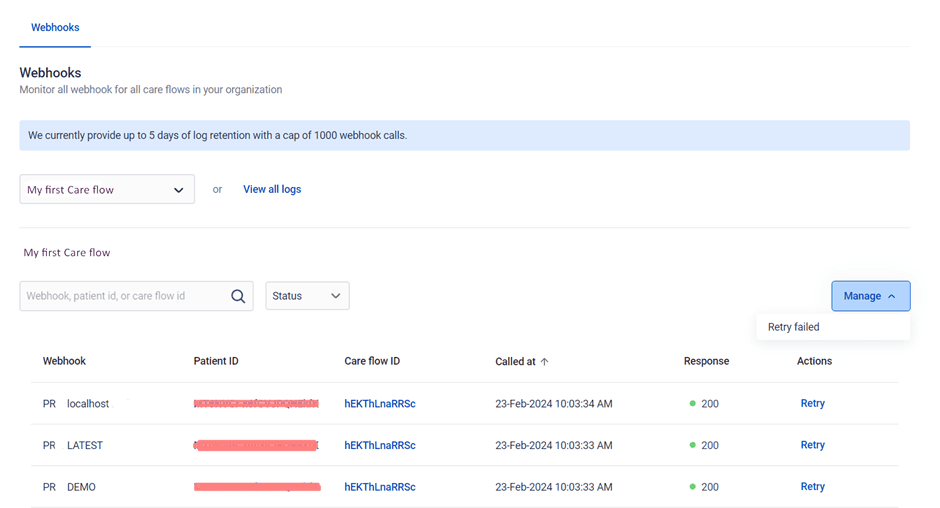
Logs are kept for roughly five days, and up to 1,000 calls — the log itself states both limits.
Retry something that failed
Once the receiving system is back up, resend a webhook call one at a time, or resend all the failed calls for a care flow at once.
Awell also retries automatically when a call fails, waiting longer between each attempt. It starts at a couple of seconds and backs off for up to about 18 hours before it stops trying, so a brief outage usually resolves without a manual retry.
Next steps
- Something isn't arriving? Check the logs above first, then confirm the URL and the events with the receiving engineer.
- What's actually being sent? → Webhooks and events
- Traffic the other way, with another system starting a care flow? → Start a care flow from an incoming webhook
Receive webhook events
Build an endpoint that receives Awell's outbound webhook events: choose the events, verify the signature, respond correctly, then move from a test endpoint to production.
Configure webhooks for all care flows
Set up an outgoing webhook once in CareOps and it applies to every published care flow, with its own events, custom headers and a test endpoint.