
Add a form to a step
Attach a form action to a step, choose who fills it in, and remove one that is no longer needed.
Forms are how a care flow collects data. This page covers the form action on a step: attaching one, picking who fills it in, and removing it.
Building the form's questions is a separate job, covered in Build a form.
Add a form action
- Double-click the step that should collect the data.
- Click Add action and choose Form.
- Name the form action.
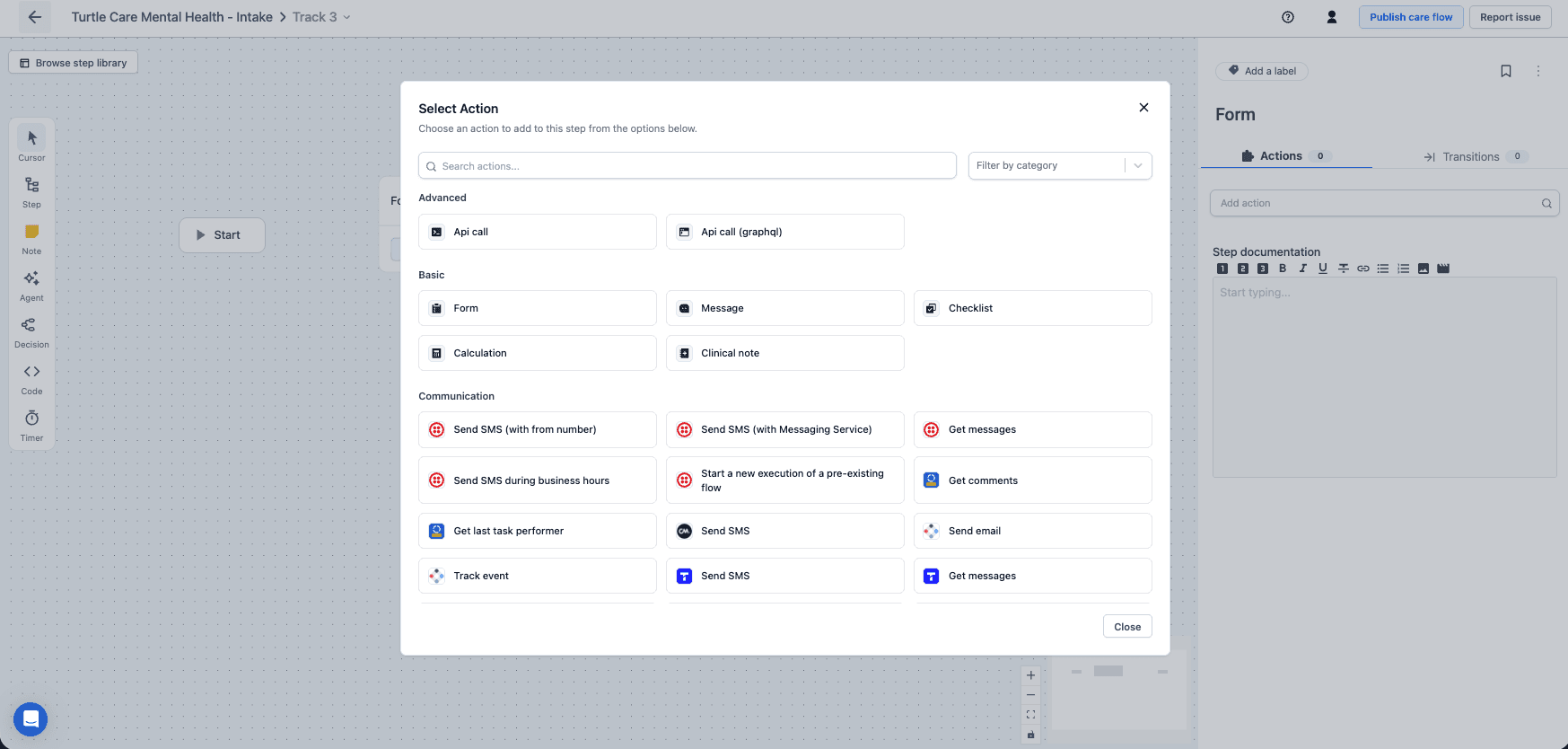
Actions are grouped by kind. Form, Message, Checklist, Calculation and Clinical note are built in; anything under Communication or Advanced comes from an installed extension.
Then in the form configuration:
- Pick an existing form from the dropdown, or choose Add form to build a new one.
- Choose the stakeholder who fills it in.
A colleague sees the action title on the canvas, so "Baseline patient-reported outcomes" beats "Form 2".
Check the shared library before building a new form
Forms are shared across the organization, so the dropdown may already hold the right one: surveys, questionnaires, feedback forms, and validated measures of patient-reported outcomes and experience.
Editing a shared form changes it in every care flow that uses it.
Remove a form action
- Double-click the step.
- Click Edit.
- Click the trash icon.
- Click Done.
This removes the form action from the step. The form itself stays in the organization's library for other flows to use.
Next steps
Next: Build a form to create the questions the action asks.