
Build a form
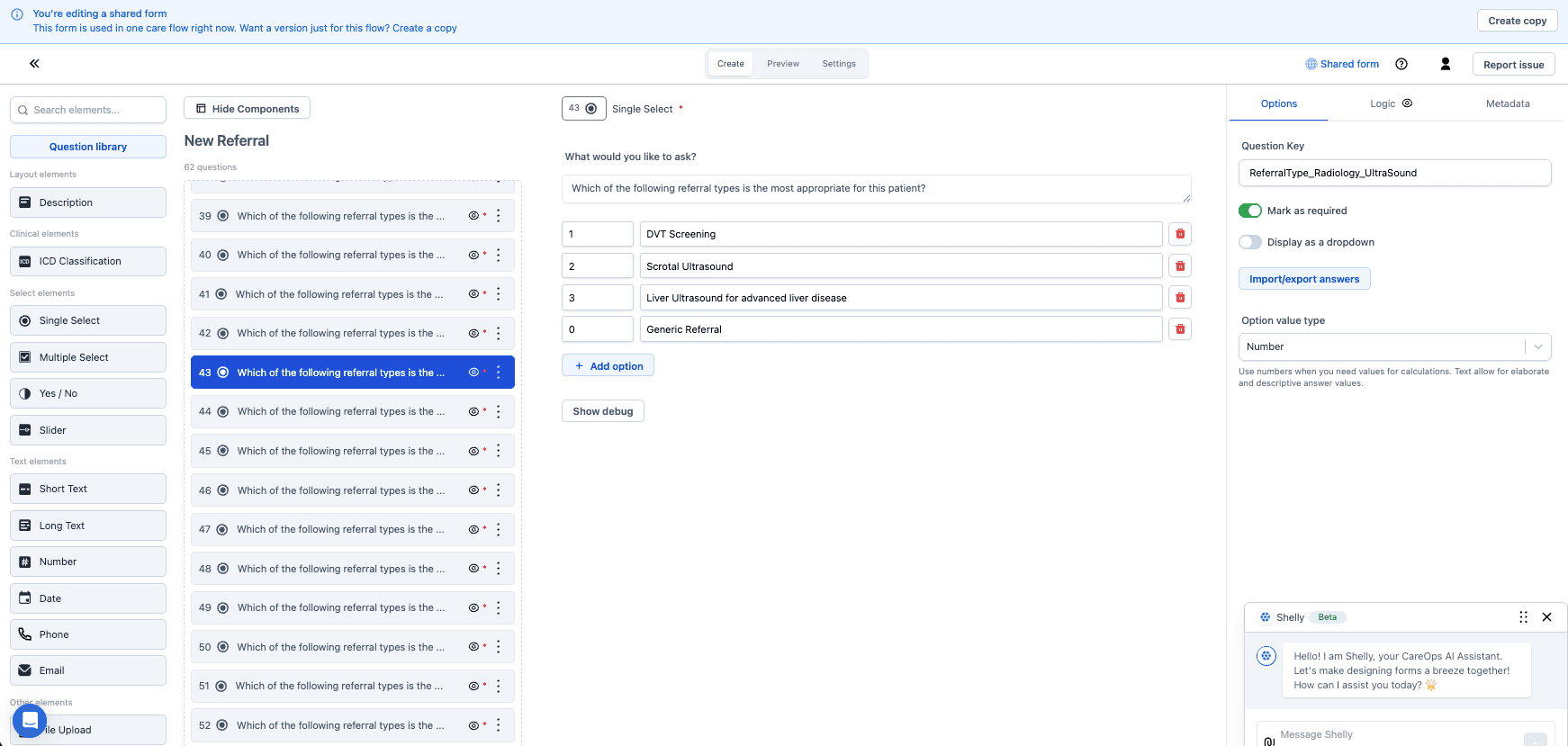
Create a form's questions in the form builder, from the validated-questionnaire library or from scratch, and understand what the data feeds later.
A form collects data from a patient or a care team member. This page covers building the form itself. Attaching it to a step is covered in Add a form to a step.
Form answers become data points that drive the rest of the flow
What a form collects becomes data points, and data points feed:
- Calculations, like working out a body mass index from height and weight.
- Conditional logic, like showing a follow-up question only when that index is over a threshold.
- Track triggers, like starting an "Overweight follow-up" track.
So decide what an answer is for before choosing the question type.
Create a new form
After a step has a form action, choose Add form in the dropdown. That opens the form builder: name the form there and start adding questions.
Import a validated questionnaire before writing questions
Look in the library first. Rebuilding a validated questionnaire that already exists wastes the effort, and library questionnaires arrive with their matching calculation. See Import and export form questions.
For new questions, pick the question type that matches the answer needed. Some types have their own settings worth knowing:
- Slider questions, for a visual analogue scale.
- ICD questions, for a condition coded to the International Classification of Diseases.
- File and image uploads, which need storage configured first.
A form can hold the flow until another system answers
A form can also act as a placeholder for machine-to-machine work: the care flow pauses at the form and waits for input arriving from another system at runtime. This suits a flow that shouldn't move on until an external result arrives.
Next steps
Next: Encode questions and answer options. Coding questions makes the data findable later, and it's much easier to do now than to retrofit.