
Add conditions to your questions
Show a question only when an earlier answer calls for it, using visibility logic in the form builder.
Visibility logic shows a follow-up question only when an earlier answer makes it relevant, so each respondent sees a shorter form.
Add a visibility condition
- Select the question or description to show conditionally.
- Click the Logic tab in the right pane.
- Toggle Add visibility logic on. The statement changes to "This question is only visible:".
- Click + Add condition to open the data points menu.
- Choose the data point, meaning the earlier question, that drives the condition.
- Choose the operator. The available operators depend on the question type.
- Choose the operand, meaning the specific answer that makes the question appear.
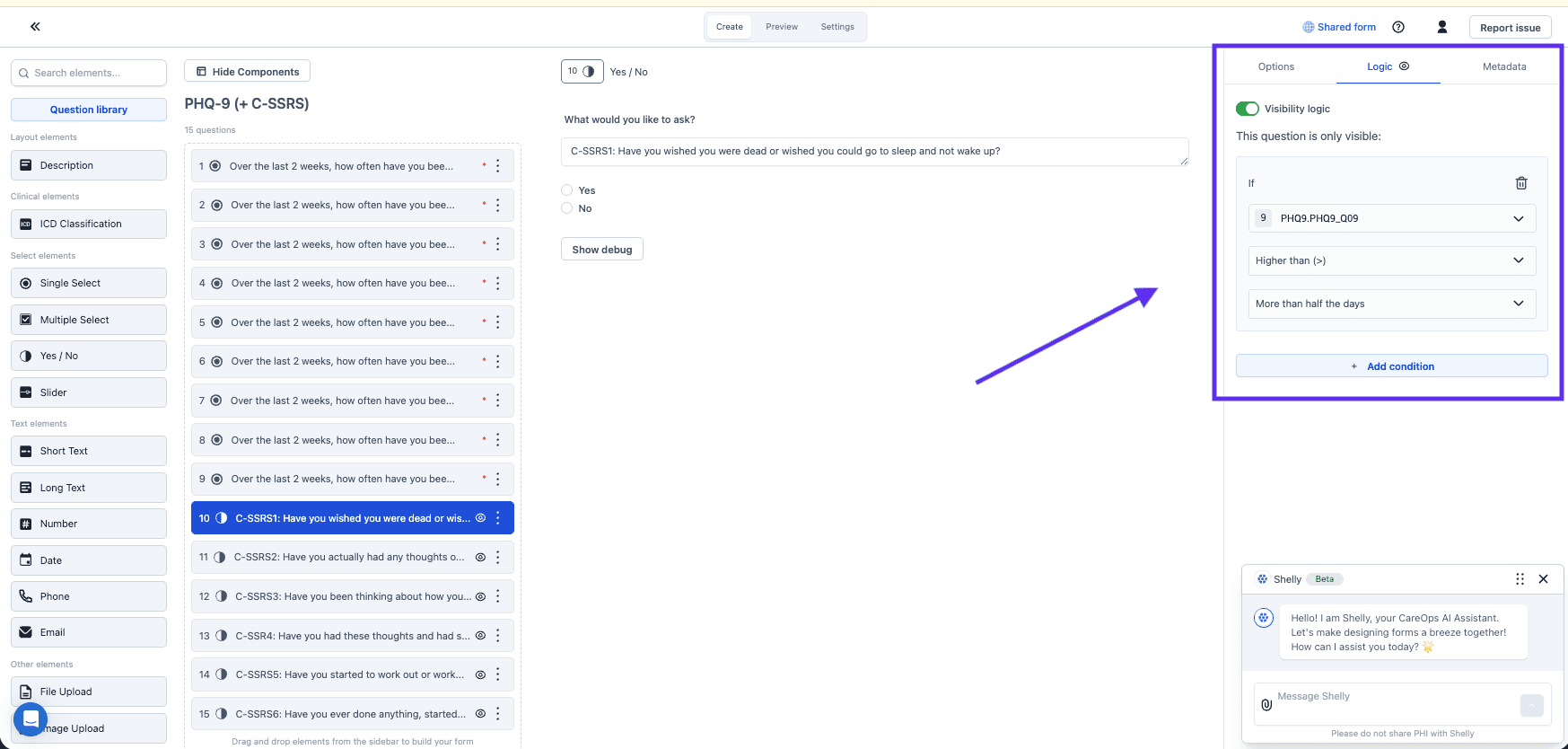
A condition reads an earlier answer, picks an operator, and compares it to a value. Add condition adds another.
Conditions join with AND or OR, never both
Several conditions can drive one question, joined with AND or OR. AND and OR can't be mixed in the same set, so a rule that needs both is a sign the question should be split.
Date and text answers can't drive visibility logic
Answers from date, short text and long text questions can't drive visibility logic. A question that controls what comes next has to be a type that can: single select, multiple select, number, slider, or an ICD question, which records a diagnosis using the International Classification of Diseases.
Check the question type at design time rather than after the form is written.
Next steps
Conditions inside a form control which questions appear. To branch the care flow itself, see Decision component.
Encode questions and answer options
Give forms, questions and answers stable keys and clinical codes, so the data is findable in logic, comparable across systems, and usable for analysis.
Configure your slider question
Every setting on a slider question, also known as a visual analogue scale, and what each one does to what the respondent sees.