
Label your steps
Use colored labels to make a busy canvas readable, grouping steps by whoever or whatever matters in the care flow.
Labels give steps a color and a name, so a busy canvas stays readable at a glance.
Add a label
- Open the step's context menu.
- Click Click to add label at the top of the side pane.
- Pick a color, name the label, and click ✔ to save it.
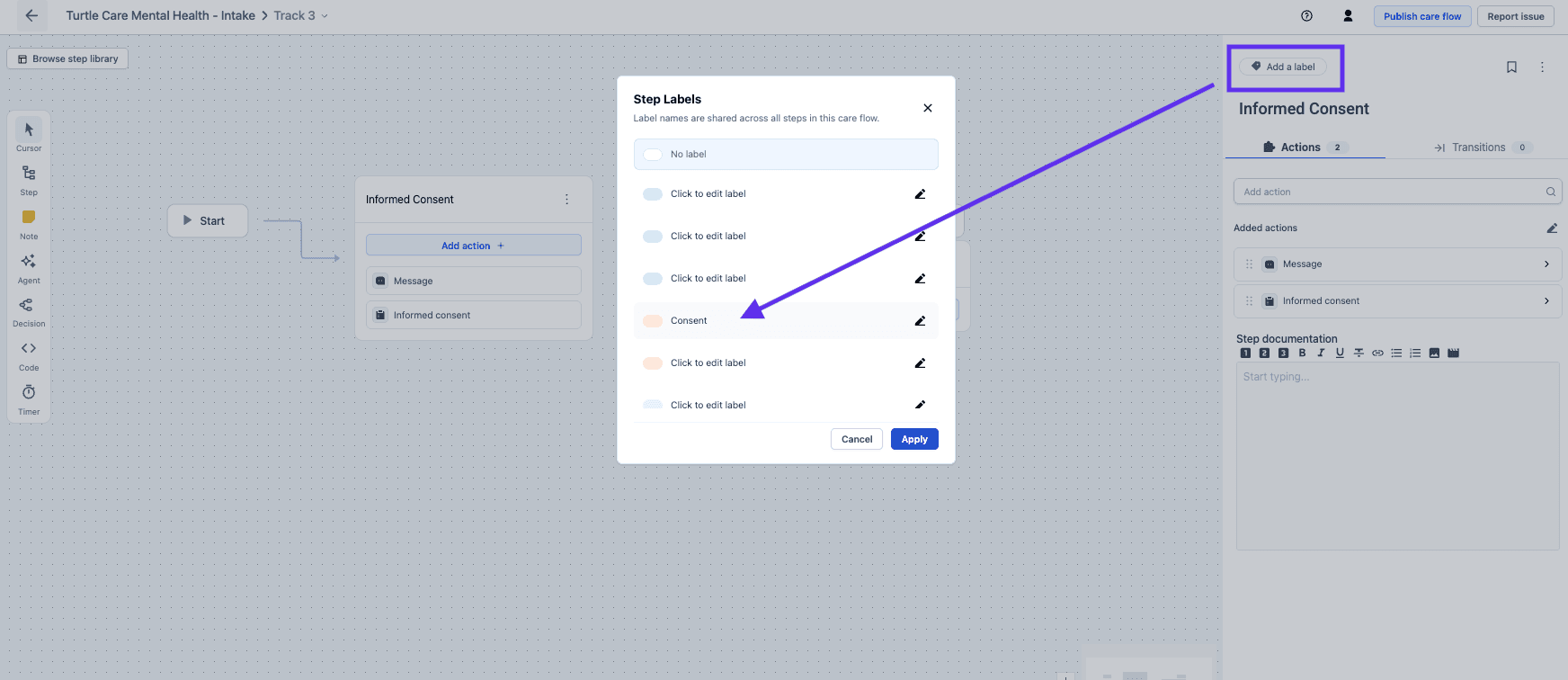
Label names are shared across every step in the care flow, so renaming one renames it everywhere.
Choose one dimension and stick to it
Because a label can mean anything, labels only help when they all describe the same dimension. Pick one and keep to it:
- Who acts: one color per professional, so the nurse's work is easy to pick out.
- Care setting: primary care, emergency, at home.
Labels belong to one care flow
Labels are defined per care flow. Set them once, then apply them to any step in that flow. They don't carry across to other care flows.
Label text is hidden until clicked
By default only the color shows, which keeps step cards uncluttered. Click a label to show its text on every step, and click again to hide it.
Next steps
Next: Add steps to the step library to reuse a step across tracks.