
How-toNo code needed
Add steps to your step library
Save a configured step to the step library to reuse it across tracks in the same care flow instead of maintaining duplicate copies.
Care flows repeat themselves: an email on days 1, 3 and 5, or a questionnaire repeated through a treatment. The step library holds a step once and makes it available to every track in the same care flow.
Save a step to the library
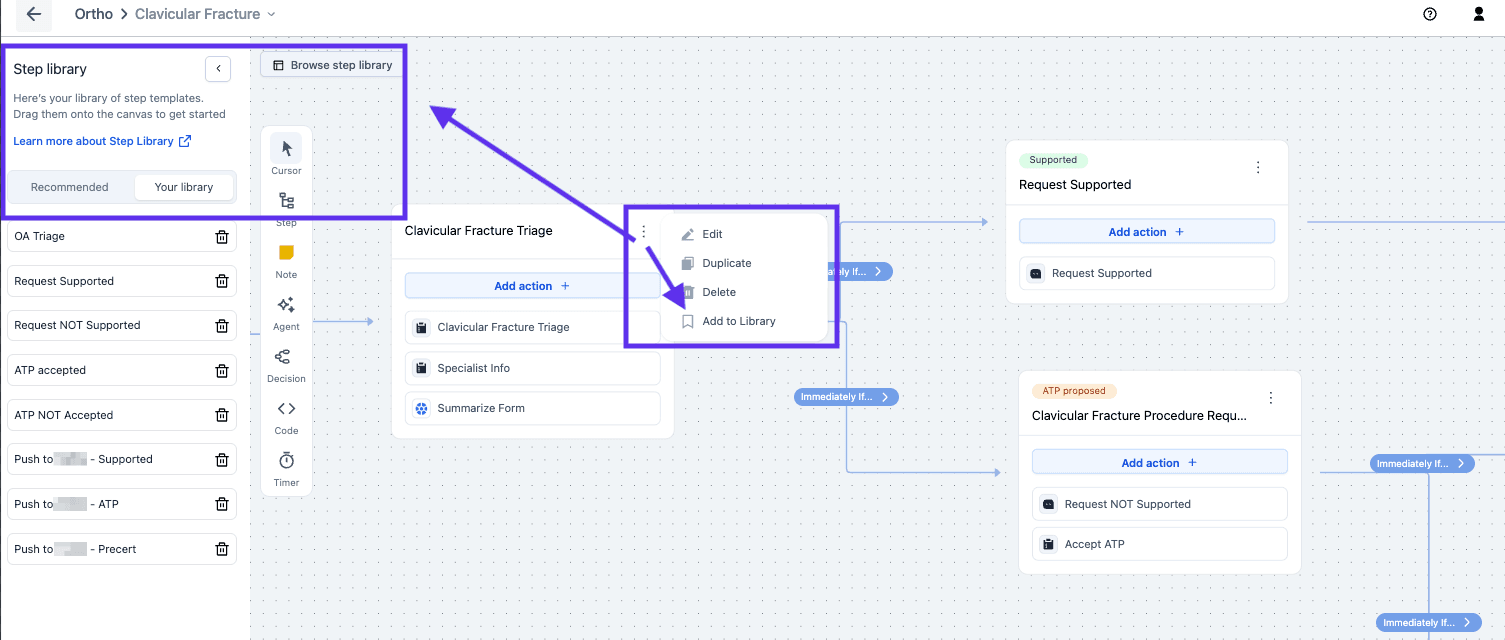
Save a step from the canvas or from its side pane:
- Open the step's context menu (three dots, top-right) and click Add to library, or
- Double-click the step to open the side pane and click the bookmark icon 🔖.
Reuse it in another track
- Go to another track in the same care flow.
- Click Browse step library on the left.
- Open Your library.
- Drag the step onto the canvas.
Change or remove a library step
Click Browse step library on the canvas, then edit or remove the saved step from there.
Use the library for several tracks and a duplicate for a one-off
- Use the library when the same step belongs in several tracks, so there's one version to maintain rather than copies that drift apart.
- Duplicate a step for a one-off copy that gets changed immediately anyway.
Next steps
Next: Track looping for care that repeats on a schedule rather than in a few known places.