
Set a display mode for your forms
Show a form one question at a time or all at once, set per form action, and know the one place the setting applies.
A form can be shown one question at a time or all at once, which changes how it feels to fill in.
The setting only applies to Hosted Pages. Forms in care flow previews and in Awell Care always use regular mode, and conversational mode can't be previewed in the form builder. Test conversational forms on a hosted page, not in the builder.
Conversational suits patients and regular suits staff
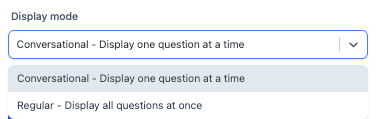
- Conversational shows one question at a time. It suits patient-facing forms, where it reads as a natural back-and-forth.
- Regular shows all questions at once. It suits longer forms for clinical staff, who move through the questions and review them before submitting.
Set the mode on the form action's Design tab
Set it in Studio when adding or configuring a form action: open the Design tab and choose the display mode.
The setting lives on the action, not the form
The same shared form can use different modes in different care flows, and a form used twice in one care flow can use a different mode each time. So one form can be completed by a patient in conversational mode and by a nurse in regular mode.
A custom interface needs regular mode
For teams rendering activities themselves, regular mode is the baseline to implement. See Embed & host.
Next steps
Next: File upload for questions that collect documents.
Configure your ICD question
Collect medical conditions using ICD-10 codes, and use both the code and its name later in variables and conditional logic.
Import and export form questions
Bring questions in from the validated-questionnaire library or a JSON file, including a spreadsheet template that maps to the right format.