
Edit a care flow's tracks
Add or stop a track on a care flow that is already running, when circumstances change or a phase needs repeating.
A running care flow isn't fixed. The care team can add a track when circumstances change, or stop one that no longer serves the patient. Both are possible from Awell Care or through the API.
Find the care flow
- Go to the Patient list in Awell Care.
- Search for and select the patient.
- Select one of the active care flows at the top of the Care flows page.
That opens the activity feed. Manage, at the top right, adds a track or stops or deletes the care flow. The timeline view can also stop an ongoing track.
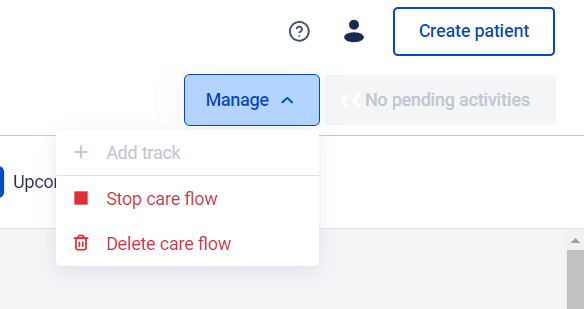
Add a track
Useful when circumstances change, or when part of the care flow needs repeating and the timing wasn't predictable.
Which tracks are available depends on the design. Only tracks marked as allowing manual triggering in Studio appear in the list.
Tip for designers: adding the manual activation trigger to every track keeps the operating team free to activate any phase. It costs nothing and saves a redesign when someone later needs a phase the design didn't anticipate.
Stopping a track doesn't stop the care flow
Stop a track when it and its pending activities no longer serve the patient, for example after a change in their circumstances.
Stopping a track ends its pending activities. The rest of the care flow keeps running.
Through the API
Both are available in the Orchestration API. See Tracks in the API reference.
Next steps
Next: Stop or delete a care flow when the whole flow, not one track, should end.