
Add a calculation
Turn data collected in a care flow into a score, using a validated calculation from the Awell Score suite, then configure its inputs.
A calculation turns data a care flow has collected into a score, and the care flow can branch on that score or put it in a report.
Add the calculation action
- Double-click the step that will hold the calculation.
- Click Add action and choose Calculation.
- Name the calculation action.
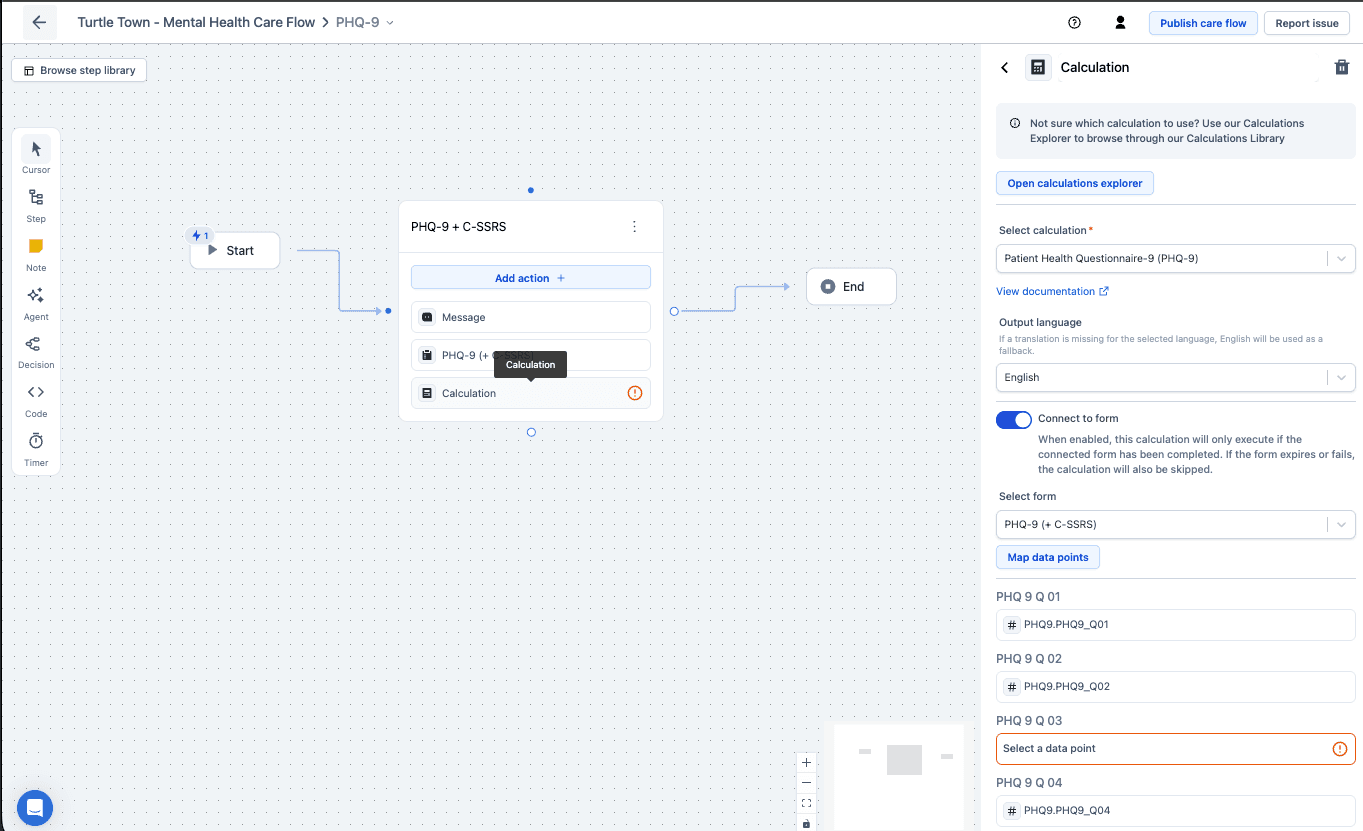
Connect to form ties the calculation to the form that feeds it, so it only runs once that form is complete and is skipped if the form expires.
Prefer a validated calculation from the Awell Score suite
Awell supports many calculations based on validated questionnaires, available in the CE-marked Awell Score library.
Standardizing on an established instrument beats writing a new questionnaire: the measurement can be trusted, the data is higher quality, and other people interpret the results the same way.
So prefer an existing validated instrument for patient-reported outcome and experience measures, or PROMs and PREMs, unless there's a specific reason not to.
Input keys have to match what the instrument expects
A calculation needs its input data points to match what the instrument expects. For each calculation, Awell Score publishes the documentation that explains how its questions, answers and scoring work, and how results should be interpreted.
For each calculation Awell provides a proposed question and question key, for example
PROMIS_10_.... Use the proposed keys. The calculation matches on them, and a renamed key means the
calculation can't find its input.
Library questionnaires already carry the keys their calculation expects, so importing the questionnaire avoids renaming altogether.
Simulate the calculation before a patient reaches it
Simulate the calculation and read its documentation first. A calculation given the wrong input still returns a score rather than an error, so the mistake shows up only in the result.
Next steps
Next: Use variables in your actions to put the score into a message or a clinical note.
Collect files and images
Let respondents upload documents and images through a form, and connect the Google Cloud Storage or Amazon S3 bucket those files are written to.
The Timer component
Pause a care flow for a set duration or until a specific date, with the timing visible on the canvas and skippable while testing.