
Set the accent color in Panels
One accent color in Panels settings drives the sort and filter button, the marker on a sorted column, the selected view tab, the Add Task button and the background tint. Set it once for everyone in the project.
Awell Panels colors a handful of small things from one accent color. Change that color in Settings and all of them change together. Everyone working in the same project sees the new color.
Panels starts on a purple, #8250df. Any six-digit hex color can replace it.
What the accent color changes
| Where | What it colors |
|---|---|
| Panel toolbar | The sort and filter button |
| Column headers | The sort and filter markers on a column that has one |
| View tabs | The border under the tab in front |
| Patient and task details | The Add Task button, and the cards that open and close |
| Page background | A much lighter wash of the same color, behind the toolbar, the table, the tabs and the details window |
Set the color
- Open Settings from the Panels navigation.
- Go to the Appearance section and find the card headed Accent Color.
- Pick a color with the swatch, or type a hex value such as
#0f766ein the field beside it. The leading#is optional. - Check the preview underneath. It shows the sort and filter button in the new color, next to a strip of the background tint it produces.
- Click Save. Pressing Enter in the hex field does the same thing.
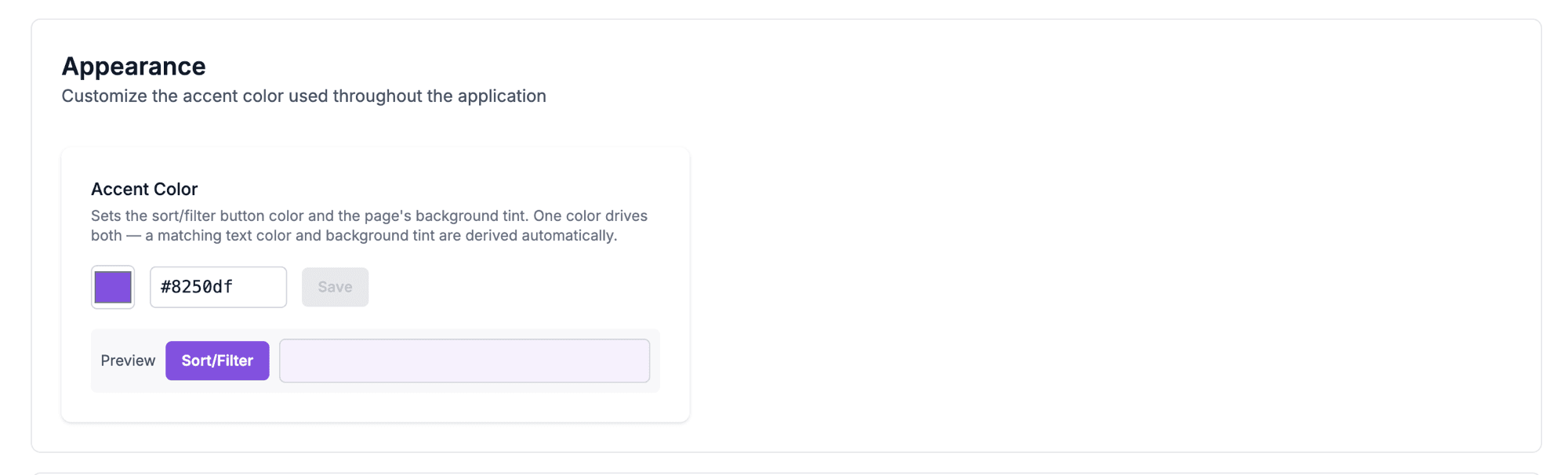
Nothing changes for anyone until you save, so a color can be tried in the preview and abandoned.
Save turns on only for a new, valid color
Save stays unavailable in two cases:
- The value is not a six-digit hex color.
#1a7f64works;#1a7andtealdo not. The field's border turns red while the value is wrong. - The value is valid but matches the color already saved. There is nothing to save, so the button stays off.
Reset to default puts the purple back
Reset to default appears beside Save once a custom color is stored. It removes the custom
color and returns Panels to #8250df. The button is not there while Panels is on the default,
because there is nothing to reset.
The text color and the tint follow from the accent
You pick one color. Panels works out two more from it:
- Label text on anything filled with the accent is set to black or white — whichever is easier to read against the color you chose. A pale accent gets black text. A dark one gets white.
- The background tint is the accent mixed 8% into white, which reads as a wash rather than the full color.
Neither has a setting of its own.
The color belongs to the project
Panels stores the accent color on the project, not on a person, so there is no personal version of this setting. Saving applies it right away for whoever set it. Anyone else picks it up the next time they load Panels.
This is not the same as branding
Awell has two other color settings. Changing the accent color in Panels does not affect either one.
| Setting | Covers | Who sees it |
|---|---|---|
| Accent color in Panels | Panels only | Your care team |
| Branding | Logo and styling across the platform | Your care team |
| Branding and theming | Hosted Pages | Patients |
Next steps
Next: Set your organization's branding. The accent color stops at Panels, so the logo and styling your team sees everywhere else is a separate job.
Build a panel
Describe the columns a team needs in plain language and the column builder finds them in the data underneath, then arrange, calculate and filter until the panel is the worklist for one job.
Improve & analyze
Decide what a care flow should improve, set up the measurement before it goes live, then see how it is actually performing and what to change.